
Bluetooth® Mode
The transmitter (TX) can establish a direct wireless connection to your Bluetooth®-compatible smart devices or PC/Mac via Bluetooth® Classic or Bluetooth® LE Audio, without requiring a Profile Wireless Receiver, and you can find information on pairing transmitter and receiver in the chapter Pairing transmitter and receiver.
To activate Bluetooth® mode:
-
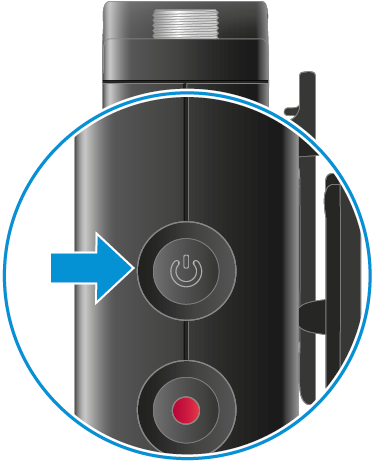
Briefly press the ON/OFF button on the side of the powered-on
transmitter 3 times.
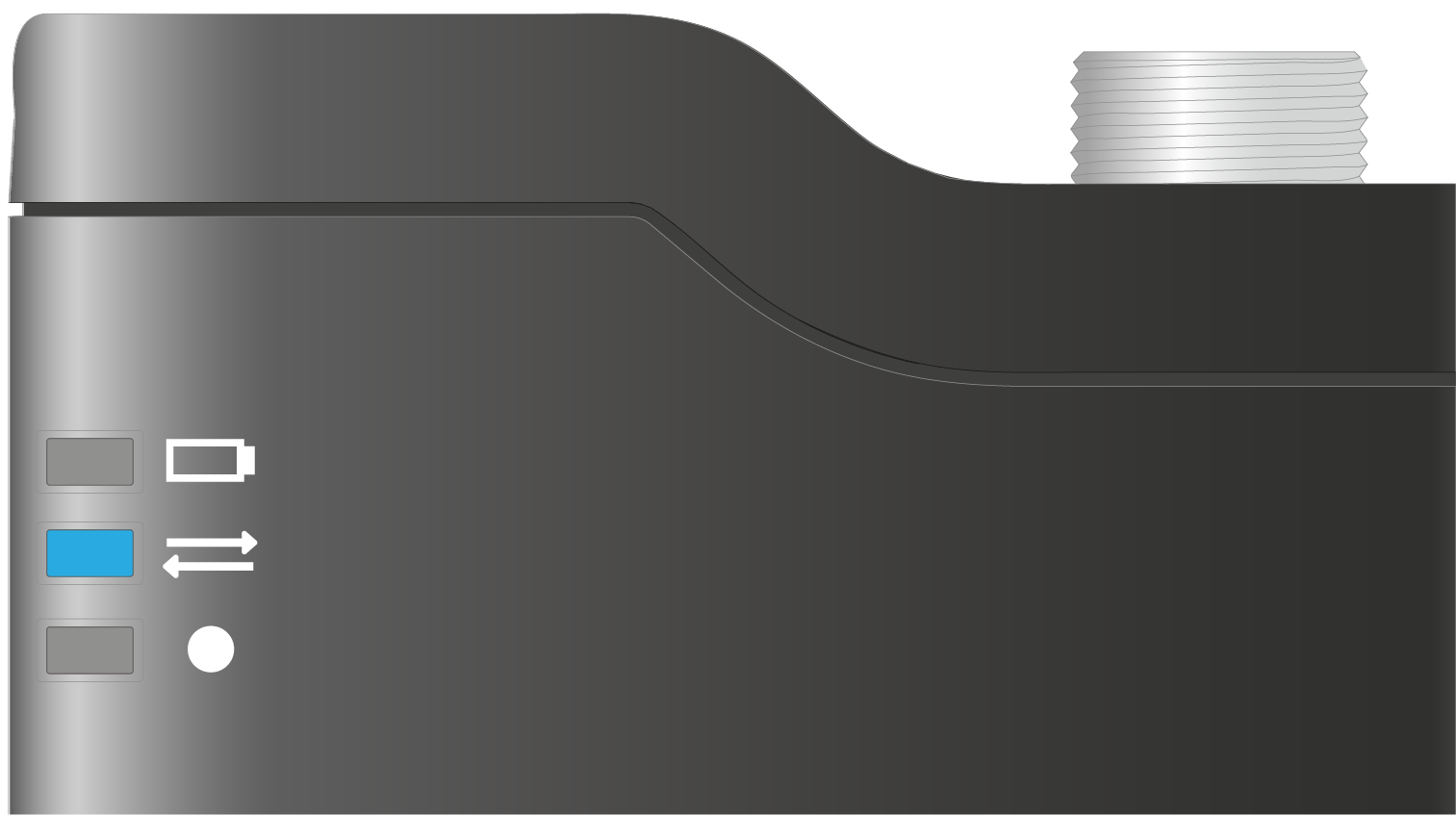
Bluetooth® mode is activated and the connection status LED initially lights up blue:
 Notice:For information on compatible devices, see the chapter here.
 -
Now pair your smart device by selecting the transmitter (TX) in the
Bluetooth® menu; it will be displayed as "Profile Wireless TX
BT".
Notice:If your device supports "Bluetooth® LE Audio", you must enable "LE Audio" in the Bluetooth® connection settings. Only then will you use the highest possible audio quality for the wireless connection without a receiver. If your device only supports "Bluetooth® Classic", this option will not be displayed.When your smart device is paired, the connection status LED lights up green.

To disconnect the transmitter from a paired smart device, the following
options are available: