
Adding devices
You can add devices automatically or manually.
The Firmware Updater automatically discovers devices in your network when you open the application.
To a add new device with Automatic Device Discovery:
-
A manual refresh option is available if needed.
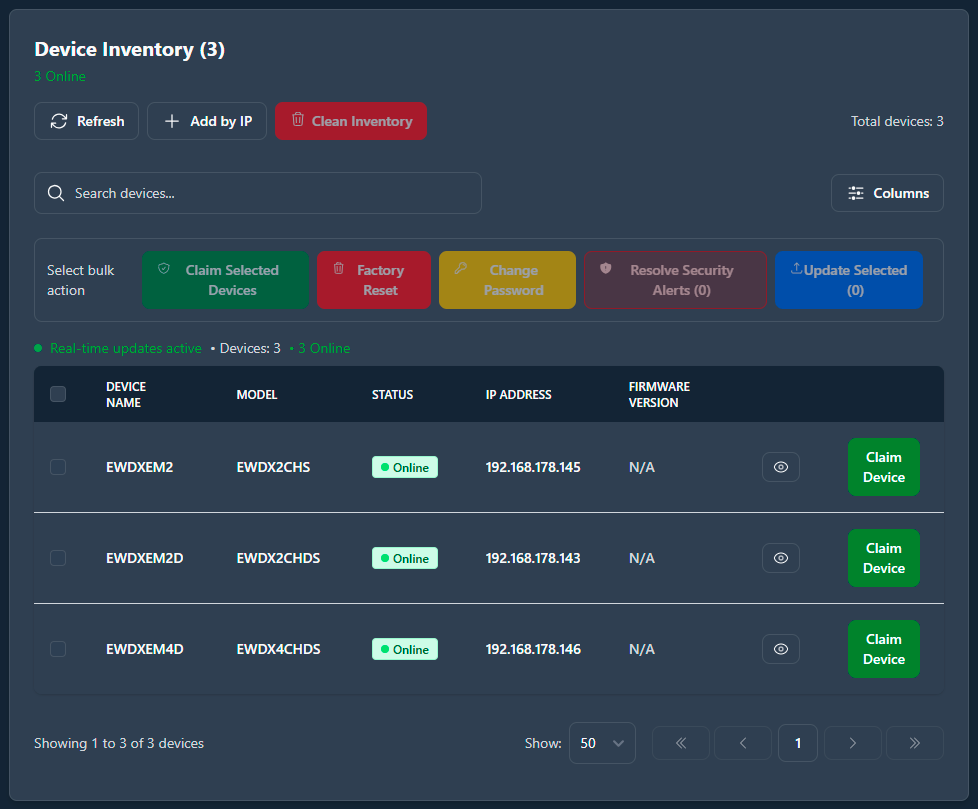
If no devices are found:- A message will indicate no devices were found.
- Check that devices are powered on and connected to the same network.
- Try adding devices manually using their IP address.
To add a new device manually:
If devices don't appear automatically, you can add them manually.
-
Click on Add Device.
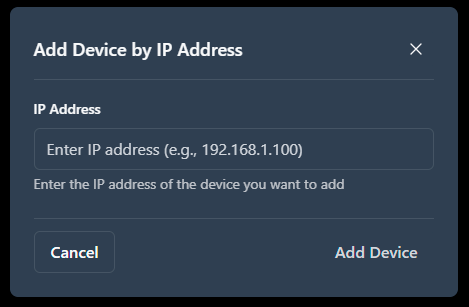
What the system checks:- Valid IP address format
- No duplicate IP addresses already in your list
- Device is reachable on the network
Error messages you might see:- Device with this IP already exists
- Invalid IP format
- Device not reachable
- Connection timed out – please check the device or network