Defining spare groups

  1. Make sure that the “Devices” tab contains device data.
  2. In the “Spare groups” tab, click on “Add spare group...”.
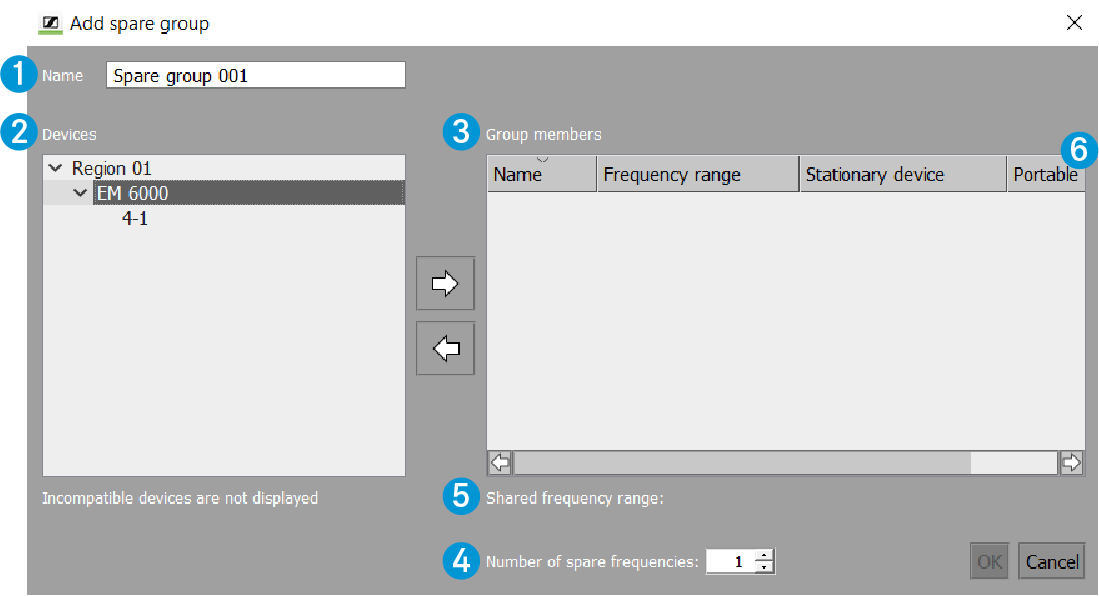
  3. Enter a name for the spare group in the “Name” field 1. The default name “Spare Group 001” is displayed in the “Name” field; as spare groups are added, they are numbered in consecutive order.
  4. From the “Devices” box 2, select a system region and then a transmission link and ...
    • click on the white right-pointing arrow to move the transmission link to the “Group members” box 3 or
    • with the left mouse button pressed, drag the transmission link into the “Group members” box 3.
  5. Repeat these steps for the other transmission links.
    If you select a device from a system region in the “Devices” box 2 to add it to the “Group members” box 3, only devices having an overlapping frequency range with the selected device are listed in the “Devices” box 2. All other devices are hidden.
  6. In the “Number of spare frequencies” field 4, enter the number of spare frequencies to be available in case of need. This number is displayed in the “Spare frequencies” column in the “Devices” tab.

The overlapping/shared frequency range for the devices added in the spare group is shown behind “Shared frequency range” 5. This shared frequency range is considered for coordination.

The “Portable device” column 6 in the “Group members” box 3 lists the available portable device for each stationary device in the list.
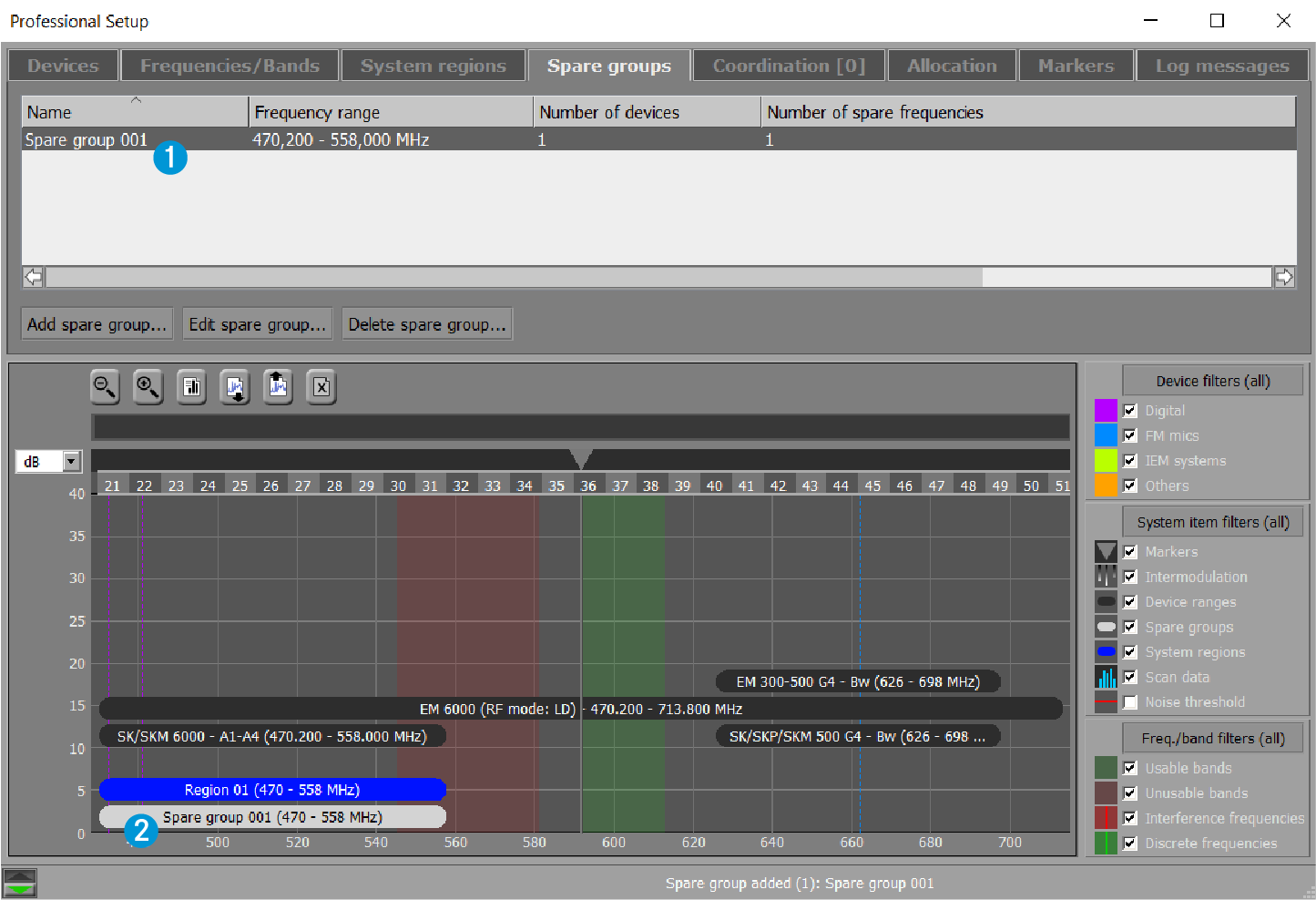
After confirming the “Add spare group” window by clicking on “OK”, the spare group 1 is displayed in the upper window area of the “Spare groups” tab.

If the “Spare groups” check box is activated, the frequency range used by the spare group is displayed as a gray bar 2 in the graphical overview.