Allocation
Allocating frequencies to channels and editing allocations
The “Allocation” tab allows you allocate frequencies to channels, either by drag and drop or automatically, and to edit the allocations.
Selecting a coordination result for the allocation
-
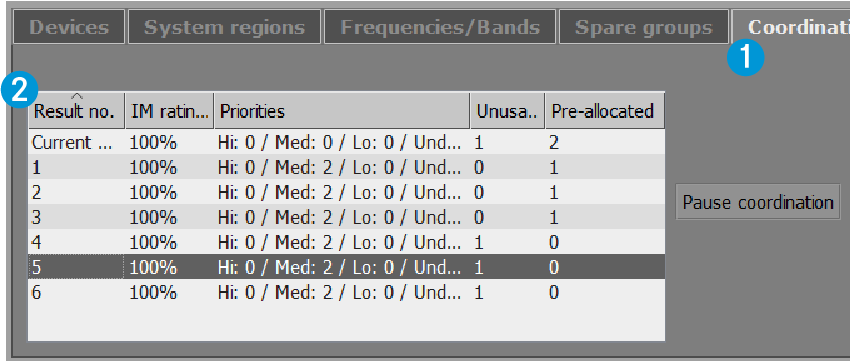
From the “Coordination” tab 1, select a coordination result 2 for the allocation:
-
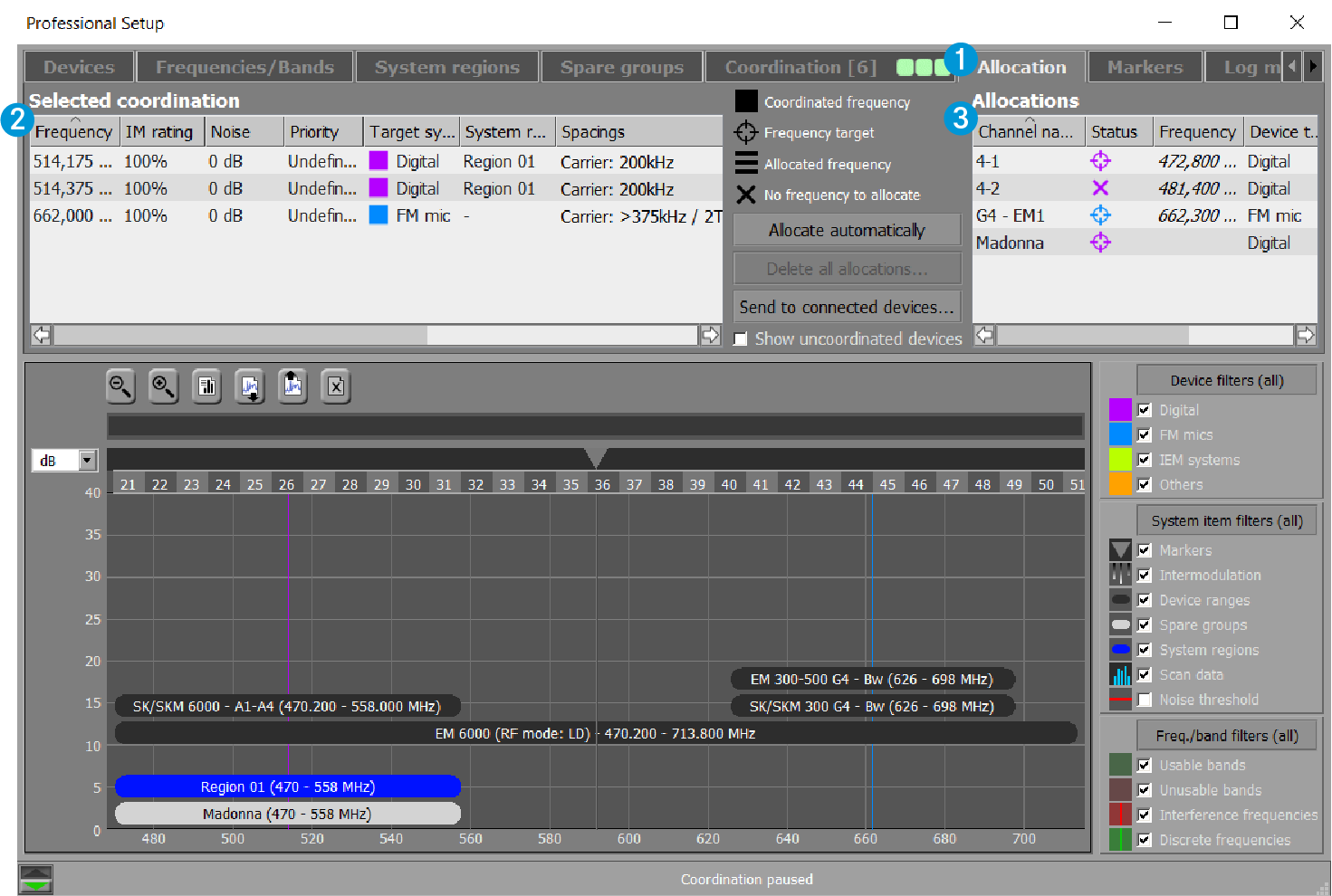
Change to the “Allocation” tab 1.
The frequencies are displayed in the “Selected coordination” box 2 on the left hand side and the channels are displayed in the “Allocations” box 3 on the right hand side of the upper window area:
Allocating frequencies
To delete individual allocations:
To delete all allocations:
Sending allocations to connected devices
-
Click on “Send to connected devices...” in the upper window area of the “Allocation” tab.
If the squelch level of online devices is less than the noise level of the frequencies allocated to the devices, the following window opens, showing the recommended squelch levels for the listed devices.
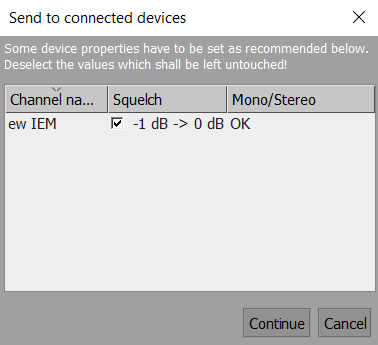
The recommended squelch levels are sent to the corresponding devices together with the allocated frequencies.
If you want to continue using the previously set squelch levels:
-
In the “Squelch” column, deactivate the check boxes for the corresponding devices and click on “Continue”.
Before you can change parameters such as the squelch level, you must activate the “Remote Access” menu item in the “System” menu.
The “Sending status” window shows a progress bar 1, indicating the progress of frequency allocation to the connected devices in percent. The list of messages 2 displays progress information in text form.