
Markers
Setting and editing markers
The “Markers” tab allows you to set colored markers and label them with names in order to mark certain positions in the frequency spectrum.
Setting markers
-
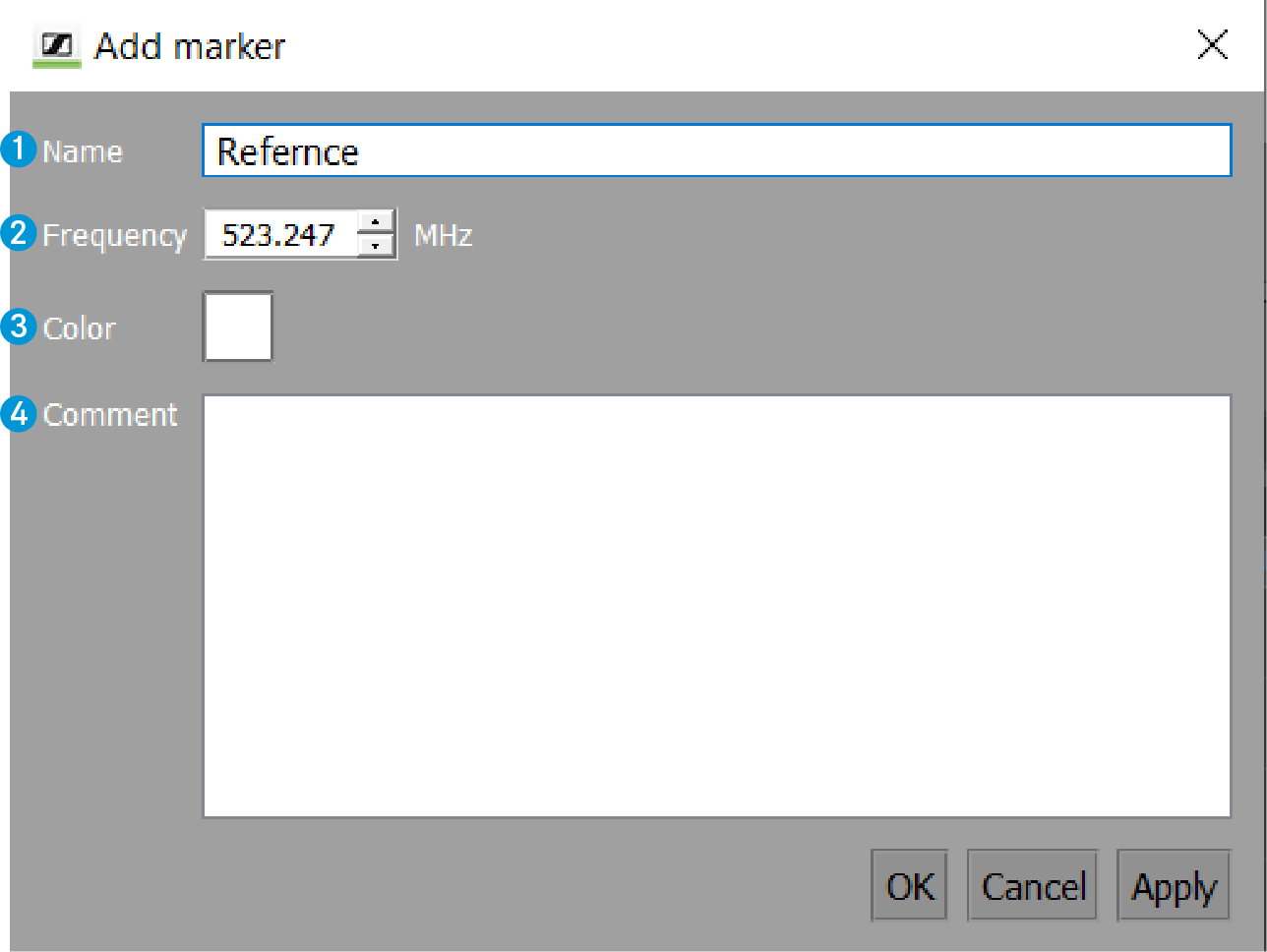
Enter a comment 4 if necessary.
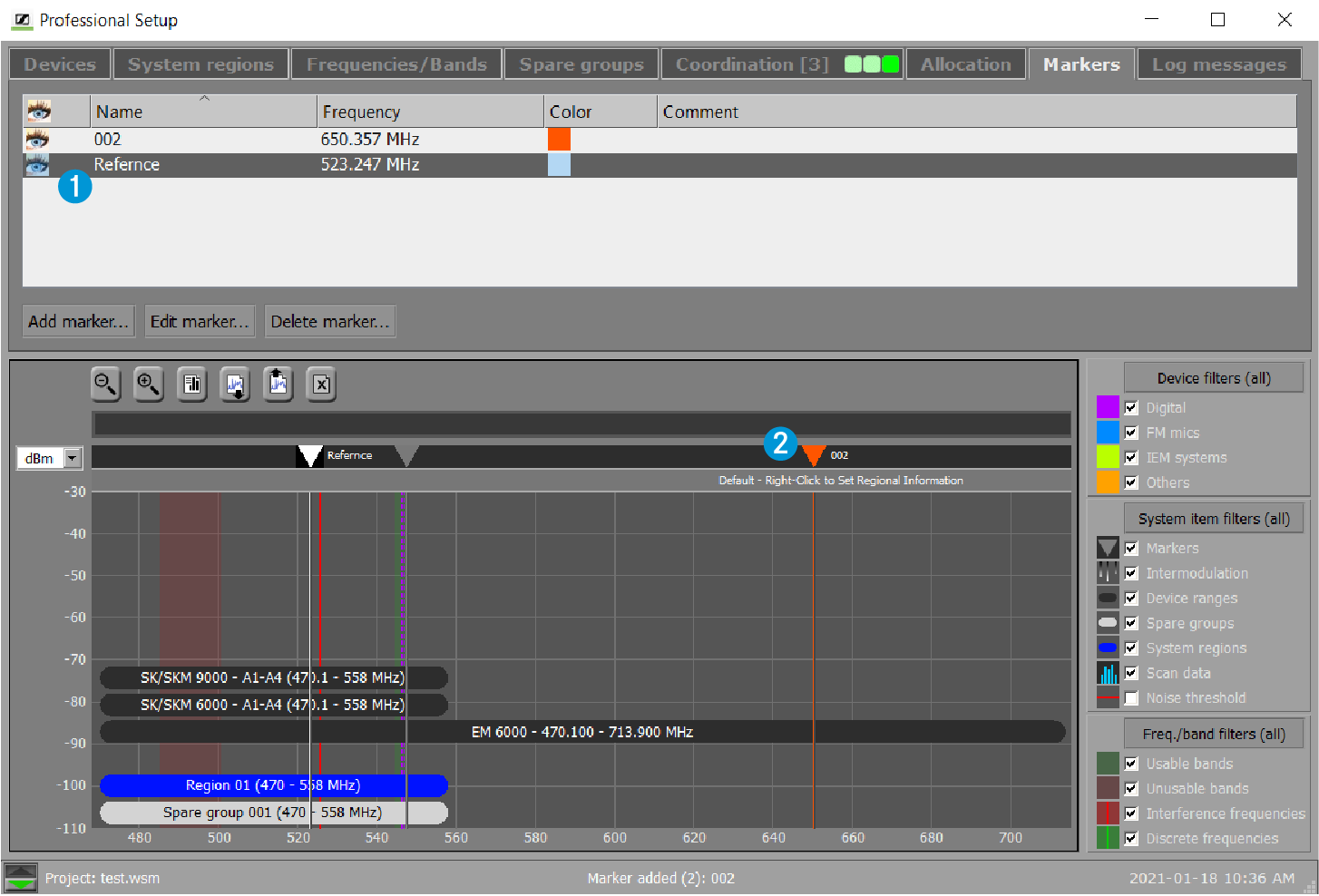
After confirming the “Add marker” window by clicking on “OK”, the marker 1 is displayed in the upper window area of the “Markers” tab.In the graphical overview, the marker appears as a vertical line 2. The upper end of the marker shows a downward pointing triangle and the label of the marker:
Editing markers
Deleting markers