
Layout of the panel
Every panel displays a stationary device. The graphical representation of the panel depends on the device type and the settings made under “View Style” in the “Channel” menu. For details on the possible settings, see Working with panels.
The following screenshot shows an example panel:
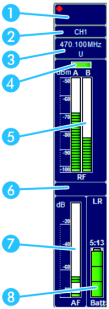
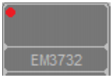
1 Icon / number / picture

Depending on the connected device, one of the following icons appears:
 |
Lights up: An external word clock generator is connected and switched on. |
|
Flashes: The receiver is not synchronized with the word clock generator (see instruction manual of the device). |
 |
The receiver is working with the internal word clock generator. |
 |
Streaming is not enabled (for information on how to enable streaming, see Configuring streaming). |
 |
Streaming is enabled but no stream is played. The letter R indicates that RTP/RTSP streaming is used. |
 |
RTP/RTSP streaming is active and streams can be listened to. |
2 Name of the device

3 Frequency and channel display
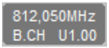
4 Diversity display

The labeling of the diversity sections depends on the device type:
- 3000 series receivers: “A” and “B”
- ew G3 and 2000 series receivers: “I” and “II”
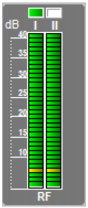
5 Field strength display
The bar graphs indicate the current field strength. The horizontal yellow line indicates the set squelch threshold (see Working with panels).
6 Status field / Display of the audio outputs AF and COM
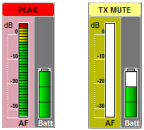
The messages are highlighted in different colors. The part of the panel to which the message refers is also highlighted.
For the list of warning and error messages, see Warning and error messages.
7 Modulation display
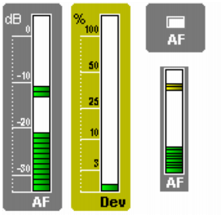
The threshold values are displayed in color in the modulation display. A yellow section in the bar graph indicates that the transmitter is fully modulated. An additional red section indicates overmodulation. If this occurs, reduce the modulation level on the transmitter.
The modulation displays depend on the device type:
- 3000 series receivers: “Dev”
- ew G3 and 2000 series receivers and stationary transmitters: “AF”
With these receivers, the modulation can be shown in different views (see Changing the graphical representation of panels).
- “Variant” 1 and 3: The modulation is shown as a bar graph.
- “Variant” 2: The modulation is shown as a colored box. The display changes between three colors, depending on the state.
8 Battery status
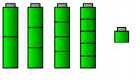
- Green: The battery is fully charged.
- Yellow: The battery is about half discharged.
- Red: The critical level is reached. The battery symbol flashes red. Additionally, a message appears in the panel, the system window (“Messages” tab) and the status bar.
The remaining accupack capacity is additionally displayed for ew G3 and 2000 series devices.