Marking measured values and commenting on them
In order to be able to better evaluate the measured values of a recording, you can use the “Marker” function. This allows you to mark the measured values and provide them with a comment.
To mark a measured value and comment on it:
-
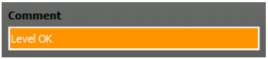
Enter your comment into the “Comment” field.
Subsequently, a “C” appears in the flag.

To delete a marker:
To hide all markers:
To show all markers:
To show a comment on a marker:
-
Click on the marker.
The color of the marker changes to orange. The comment is shown in the “Comment” field. You can change or add to your comment by clicking in the “Comment” field and entering your changes.