
Selecting the collaboration system
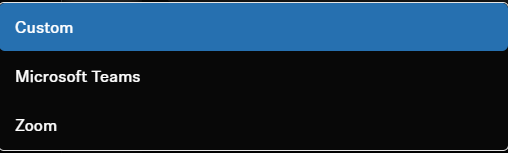
You can select the desired Device Profile, which is either taken from your own configured settings or from the predefined settings of the selected conference and collaboration platform.
When the device profile is changed, the camera settings are reset and the device is restarted.
-
Select the collaboration system used to achieve the best possible results for this platform (recommended).
-
Optional: Select Custom to apply your own settings and/or to activate the HDMI® output.
Custom (own device profile)
- Enables all settings in the tab Camera as well as the HDMI® output in the tab Device.
Microsoft Teams (predefined by Microsoft Teams)- Enables the default settings for Microsoft Teams.
- Resets and disables all settings in the Camera tab.
- Disables the HDMI® output in the Device tab.
- Reboots the device.
- Using this profile, the camera zoom of the TC Bar is reduced to comply with Microsoft Teams specification.
Zoom (predefined by Zoom)- Enables the default settings for Zoom.
- Resets and disables all settings in the Camera tab.
- Reboots the device.
- Using this profile, the camera zoom of the TC Bar might be changed to comply with Zoom specification.