
Defining Exclusion and Priority Zones
Exclusion Zone
Meetings often suffer from unwanted background noise, for example from air conditioning systems, side doors, loud coffee machines and adjacent rooms. Loudspeakers with audio from far-end participants can also be a source of interference for the microphone.
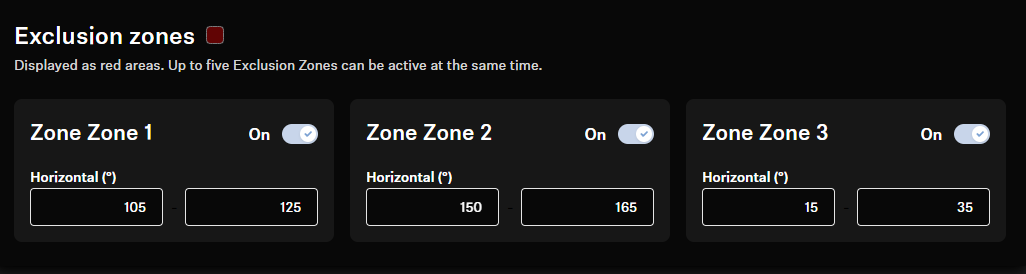
To exclude this unwanted background noise, you can define Exclusion Zones in which the beam tracking will ignore audio signals. By specifying the horizontal positions of Exclusion Zones, you can easily suppress sources of noise.
Maximum Flexibility with 3 Exclusion Zones
With the TeamConnect Bar, you can configure up to three Exclusion Zones based on their position relative to the microphone. You can select and edit the horizontal positions of these Exclusion Zones, which can be activated simultaneously.
Once the unit is initialized, the TC Bar uses a real-time algorithm to detect the noise source, which is then visualized as a 2D model directly in the Control Cockpit. This enables you to quickly and easily define a precise Exclusion Zone.
Flexible Coverage Area
The horizontal angle can be adjusted from 15° to 165°. This coverage range encompass a complete radius originating from the TC Bar microphones. You can set the individual zones in the Control Cockpit software with just a few clicks.
- If there is no noise in the room, the zones can remain switched off.
- If permanently installed devices (e.g. air conditioners, loudspeakers) are to be excluded, you should define an Exclusion Zone with the appropriate angle.
- If there are multiple sources of noise, you can configure and apply multiple Exclusion Zones simultaneously.
Priority Zone
Highlighting a Priority Area
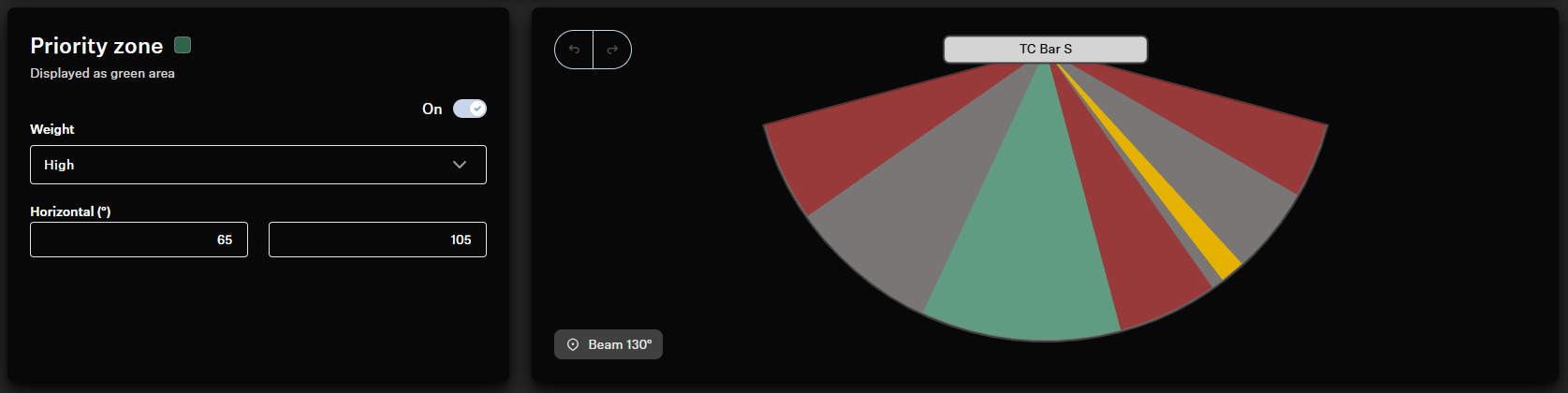
The Priority Zone is used to keep the focus on the moderator’s voice. You can easily configure a Priority Zone in the Control Cockpit, taking into account the moderator’s range of movement.
The horizontal angle can be adjusted from 15° to 165°.
Weighting of the Priority Zone
- Mid: Increases the weighting of Priority Zone audio to about 1.5
times the normal audio output (e. g. in rooms with normal ambient noise).
In this way, the source outside the Priority Zone must be 2 dB louder than a source inside the Priority Zone to direct the beam to the source outside the zone.
- High: Increases the weighting of Priority Zone audio to about 2.5
times the normal audio output (e. g. in rooms with high ambient noise).
In this way, the source outside the Priority Zone must be 4 dB louder than a source inside the Priority Zone to direct the beam to the source outside the zone.
- Max: Increases the weighting of Priority Zone audio to about 4 times
the normal audio output (e. g. in rooms with high ambient noise and a quiet
presenter).
In this way, the source outside the Priority Zone must be 6 dB louder than a source inside the Priority Zone to direct the beam to the source outside the zone.
Best Practice for Setting up the Priority Zone
- In the control software, open the tab Zones.
- Position yourself in front of the bar and start talking.
- Monitor how the microphone beam follows you.
- You can define a Priority Zone according the detected beam.
- If the volume of talkers is similar, speakers in a Priority Zone will always be favored over other talkers who are not in the Priority Zone.
- If the talker who is not in the Priority Zone is much louder than the talker in the Priority Zone, the microphone beam will eventually select the louder talker. You can influence this behavior by choosing a weight:
- The Max value adds virtual amplification to the speech from the Priority Zone so that the speaker in the Priority Zone will be picked even though they are quieter.
- The Mid value causes a lower virtual amplification.