Setting devices

  1. Click on “Add devices...”.
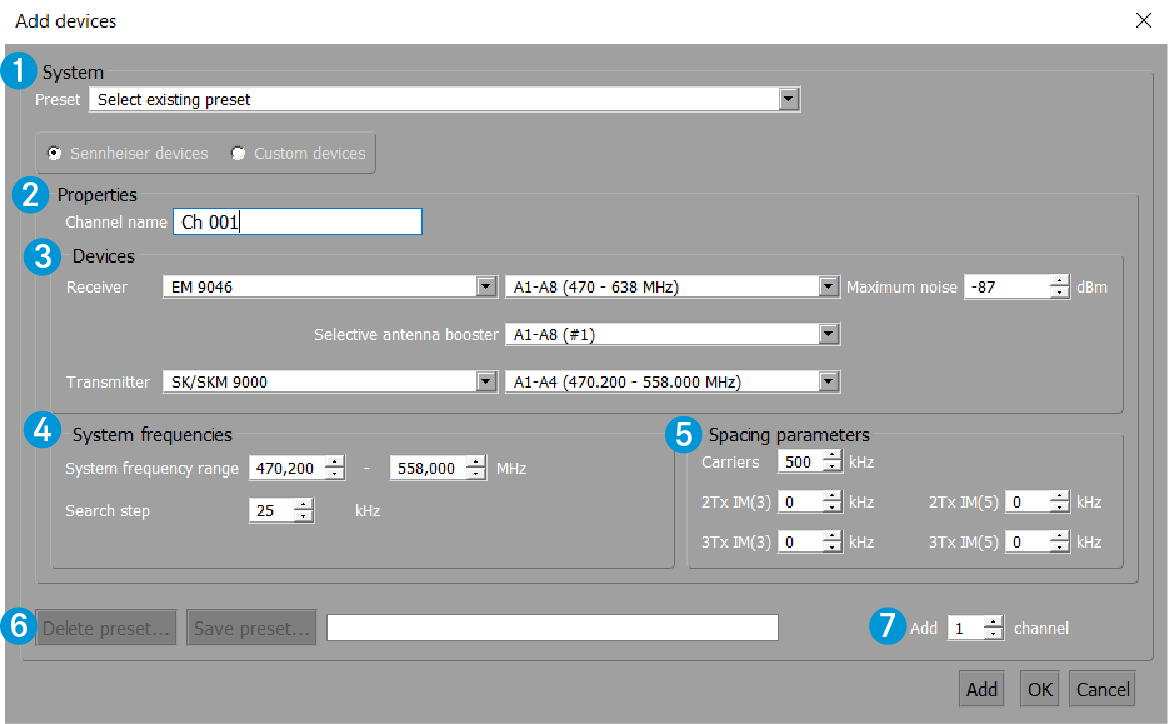
  2. In the “System” 1 area , decide whether you want to set Sennheiser devices or custom devices.
    If you have already saved device presets (area 6), they can be selected from the “Preset” list box.
  3. In the “Properties” area 2, select the naming scheme for your channels (“Channel name”).
    If you use the default channel name “Ch 001” and enter a channel number > 1 in area 7 (“Add xx channel”), the channels are numbered consecutively. If, however, you enter an name into the “Channel name” field, all channels of the device will be assigned this name.
If you use Sennheiser devices:
  1. In the “Devices” area 3, first select your receiver.
    The other list boxes in the “Devices” area 3 are filled in automatically.
  2. Adjust the settings in the list boxes according to your needs.
    Depending on the selected transmitter/receiver combination, the list boxes in “System frequencies” area 4 are filled in automatically.
  3. If necessary, adjust the minimum frequency spacings 5.
  4. In area 7 (“Add xx channel”), select the desired number of channels.
  5. If required, save your entries as a preset(area 6).
    Please note that the number of channels selected in area 7 will not be saved.

    Please note that the number of channels of the particular device type is added to the device list displayed in the upper window area of the “Devices” tab.

    Clicking on “OK” adds one device at a time and then closes the window. If you have added several devices by using the “Add” button, click on “Cancel” to close the window.
If you use custom devices:
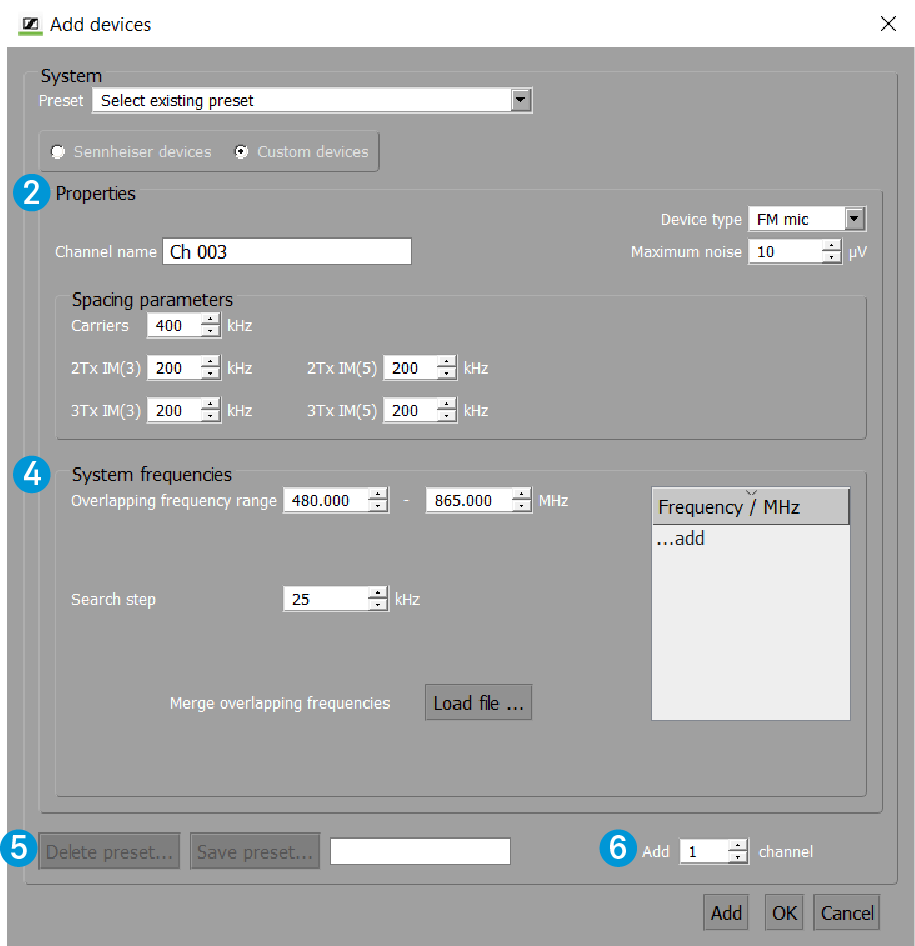
The “Properties” area 2 looks different.
  1. Select a device from the “Device type” list box and specify its maximum noise level.
  2. If necessary, adjust the minimum frequency spacings.
  3. Adjust your settings in the “System frequencies” area 4.
  4. In area 6 (“Add xx channel”), select the desired number of channels.
  5. If required, save your entries as a preset(area 5).
    Please note that the number of channels selected in area 6 will not be saved.

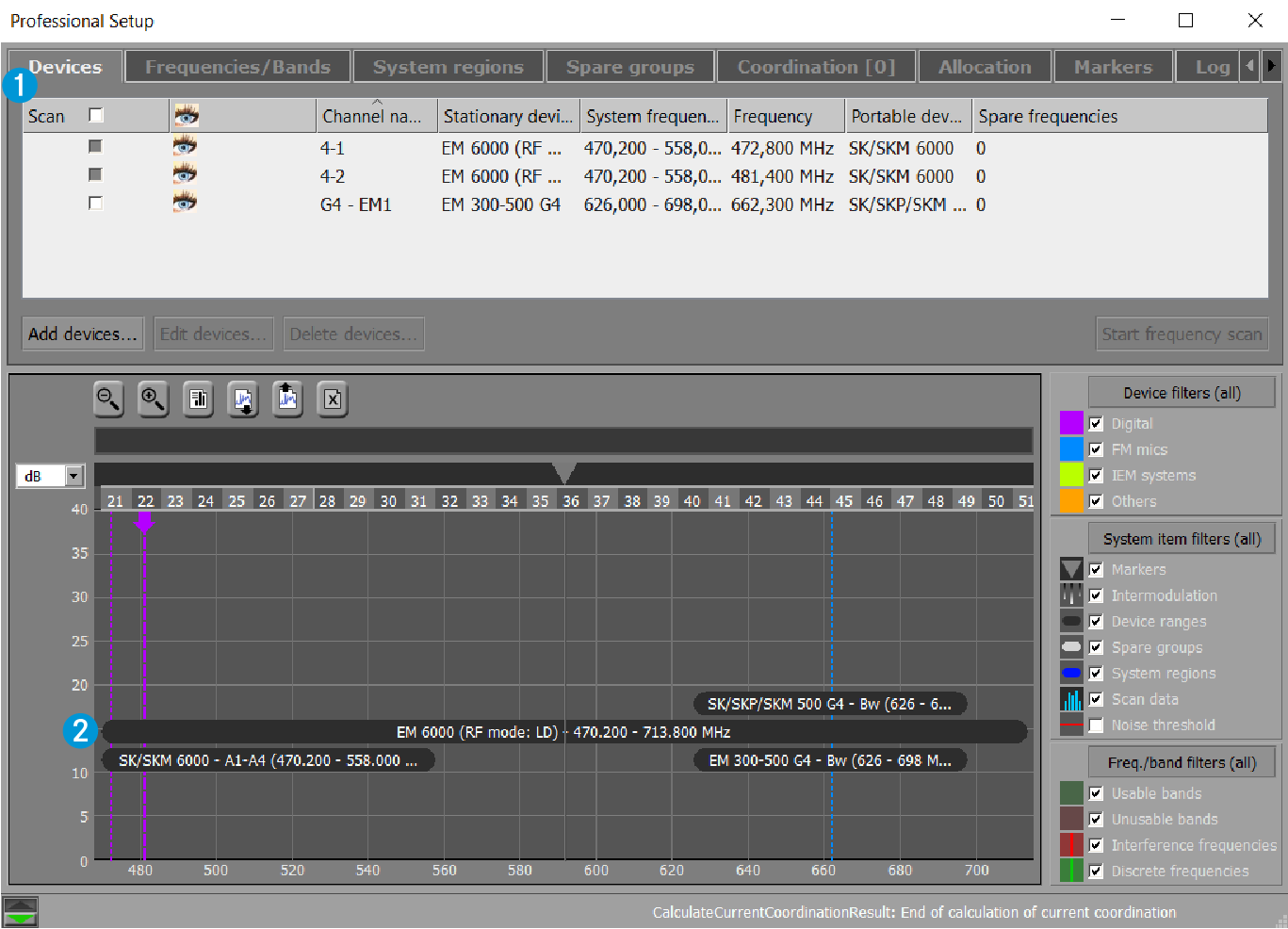
After confirming the “Add devices” window by clicking on “OK”, the device list 1 is displayed in the upper window area of the “Devices” tab.

If the “Device ranges” check box is activated, the frequency range used by the devices is displayed as a black bar 2 in the graphical overview. The 8 booster ranges of the EM 6000 receiver are displayed as purple bars.