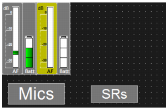
You can paste labels into a scene to provide a better overview. The labels can be freely dragged and re-sized.
-
In the “Scenes” menu, click on > “New Label”.
A label appears in the scene. The cursor blinks in the middle of the label.
-
Enter your commentary.
The font size is automatically adjusted to the size of the label.
To change the text at a later time:
-
Right-click on the label.
-
Click on “Edit”.
-
Change the text in the label.
Dragging labels
-
Click on the label.
The move symbol appears.
-
Move the label to the desired position.
Re-sizing labels
-
Click on the edge of the label.
Selection points appear at the edge of the label.
-
Drag on one of the selection points to change the size of the label. Dragging one of the corner selection points changes both the height and width of the label.
Deleting labels
-
Right-click on the label.
-
Click “Delete”.