
Assigning device to a room
Manage room assignments for devices by assigning, changing, or removing them through the Device overview page, detail pages, or the location page.
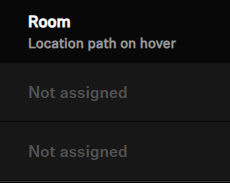
Only connected devices without an existing room assignment
can be selected.
To assign a device to a room via the Device overview page:
-
Click on:
- Not assigned in the room assignment section in the device list or
- on the icon button next to the device and choose Manage room assignment.
- Select the room which you want to assign the device to.
- Click on Save to reflect the changes in the device list.
To assign a device to a room via the Device detail page:
- Click on the device name to enter its device detail page.
- Click on the status Not assigned in the core information section.
- Select the room which you want to assign the device to.
- Click on Save to reflect the changes in the device list.
To assign a device to a room via the location page:
- Click on the icon button next to the specific room and choose Assign device.
- Select the device which you want to assign to the room.
- Click on Save to reflect the changes in the device list.