
Activating/deactivating network ports
Activating/deactivating Bluetooth®
- Activation:
- In the control application, activate the switch Bluetooth on the tab .
- Deactivation:
- In the control application, deactivate the switch Bluetooth on the tab OR
- In the control application, click Factory Reset under and confirm with OK OR
- Holding down the reset button on the back of
the device at least 7 seconds,
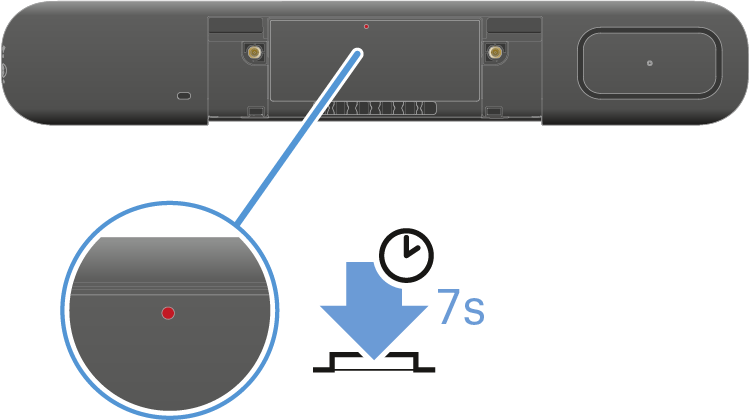
-
You can find more information in the chapter Activating Bluetooth®.
Activating/deactivating HDMI®
- Activation:
- In the Sennheiser control application, activate the switch HDMI on the tab AND connect a USB-C cable to your TC Bar OR
- In the control application, click Factory Reset
under and confirm with OK.It is not possible to activate the HDMI function in the selected device profile Microsoft Teams.
- Deactivation:
- In the Sennheiser control application, deactivate the switch HDMI on the tab OR
- Remove the USB-C cable from the TC Bar OR
- In the Sennheiser control application, activate the device profile Microsoft Teams on the tab .
-
You can find more information in the chapter Connecting the TC Bar to an external screen (optional).
Activating/deactivating Ethernet:
- Activation:
-
Insert the device’s Ethernet cable into a network port and connect the TC Bar with a far end.
-
- Deactivation:
-
Remove all of the device’s Ethernet cables from the network ports.
-
- For additional information on initial configuration in the control application, see Monitoring & Controlling.
Activating/deactivating USB:
The USB-A port becomes active only once a USB-C cable has been connected to the TC Bar.
- Activation:
-
Insert one end of the USB-C cable into the USB-C socket of the TC Bar and the other end into the USB-C socket of the device/conference system to be used.
-
- Deactivation:
-
Remove the USB-C cable from the TC Bar and/or the device/conference system in use.
-