
Configuring NTP server
Enable NTP servers or use browser time temporarily.
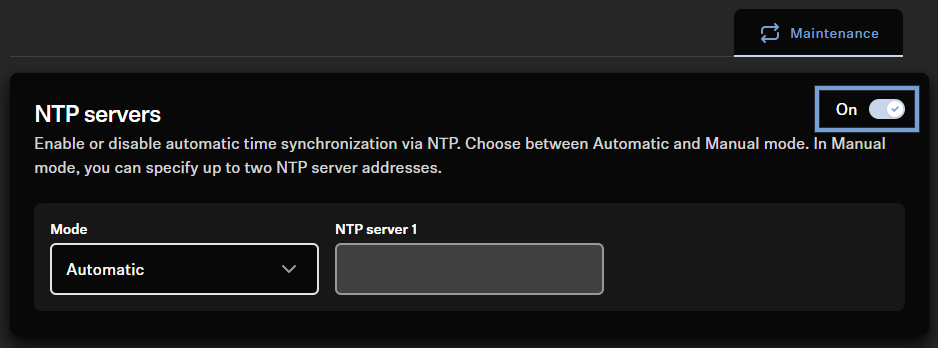
- In the Local Web UI of your device, navigate to the tab Maintenance.
- Set NTP servers to On.
- When activated, the system uses the NTP server provided by the DHCP server by default ("Automatic").
-
If your DHCP server is not providing an NTP server or if you are using a static
IP configuration, change the selection in the NTP servers
field to “Manual” and input your NTP server. You can enter either an IP address
or a DNS name.
Note:When configuring the time server, the device accepts any address or name provided via DHCP or entered manually, without verifying its reachability or validity. This feature allows for pre-configuration of the device for later use in a different environment. If time synchronization issues arise, please ensure that the configured server is accessible and is a valid NTP server.Note:When you cannot use an NTP server, you can set the device's time to match your browser's time by clicking on "Use browser time" in the System time field.
Please note, that this time is only kept until the next reboot/power down. To connect to the cloud after a reboot, you need to manually set the time again if not using NTP.