Connect and configure your device via the embedded Local Web UI.
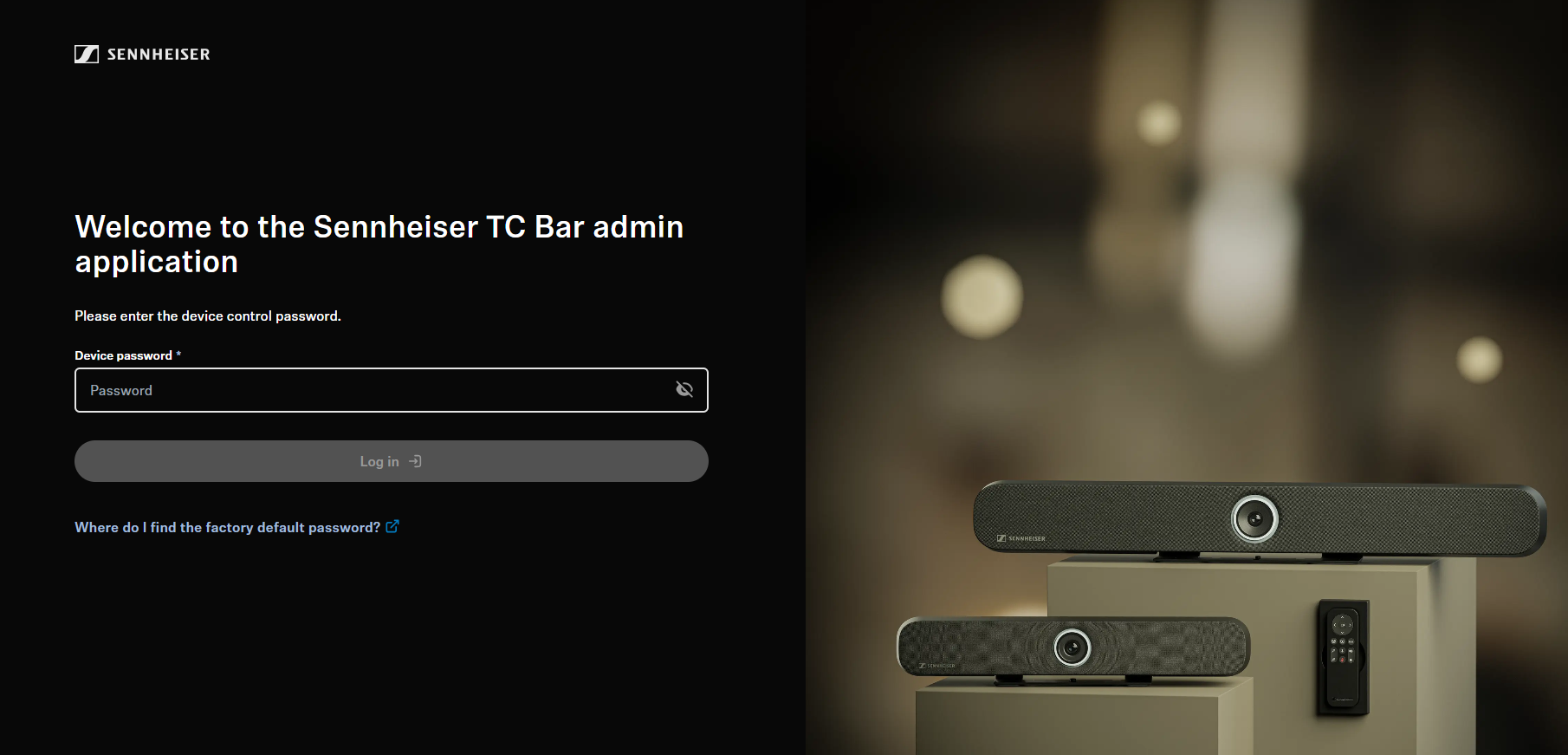
To run the Local Web UI, perform the following steps:
- Connect the device (e. g. TC Bar) to your network.
- Determine the assigned IP address or hostname of the device.
- Access the device in the browser using the IP address and initialize the
device upon first use.
To access the Local Web UI:
-
In your browser, navigate to the device's IP address or hostname using "https",
e.g.: https://IP-address.
Your browser may display a security warning, although communication
between your browser and the Local Web UI is still encrypted using HTTPS. For
details, see
Security information.
-
Depending on your browser, do the following steps:
- Google Chrome:
- Click {IP address}
(unsafe).
- Microsoft Edge:
- Click {IP address}
(unsafe).
- Mozilla Firefox:
- In the permission dialog displayed by your
operating system, click Allow.
- Click {IP address}
(Risky).
- Safari:
- Click .
- Confirm the permission dialog displayed by your
operating system.
- or similar (other browsers)
You now have access to the Local Web UI.
To initialize the device upon first start:
-
Type in the password set in the factory state, which can be found on the back
of the product label under Default password.
If the device was previously initialized by another device management
solution like Sennheiser Control Cockpit, the previously set password must
be entered. If you cannot remember the previously set password, please check
the existing configuration setup or perform a
factory reset of the
device.
-
If this device was not configured beforehand, you will be asked to set a new
device password. Please enter a new device password for future
configuration.
Please note that the new password must meet the
following requirements:
- At least ten characters
- At least one lowercase letter
- At least one uppercase letter
- At least one number
- At least one special character:
!#$%&()*+,-./:;<=>?@[]^_{|}~
- Maximum length: 64 characters
You have successfully logged into the Local Web UI.
