
Main window
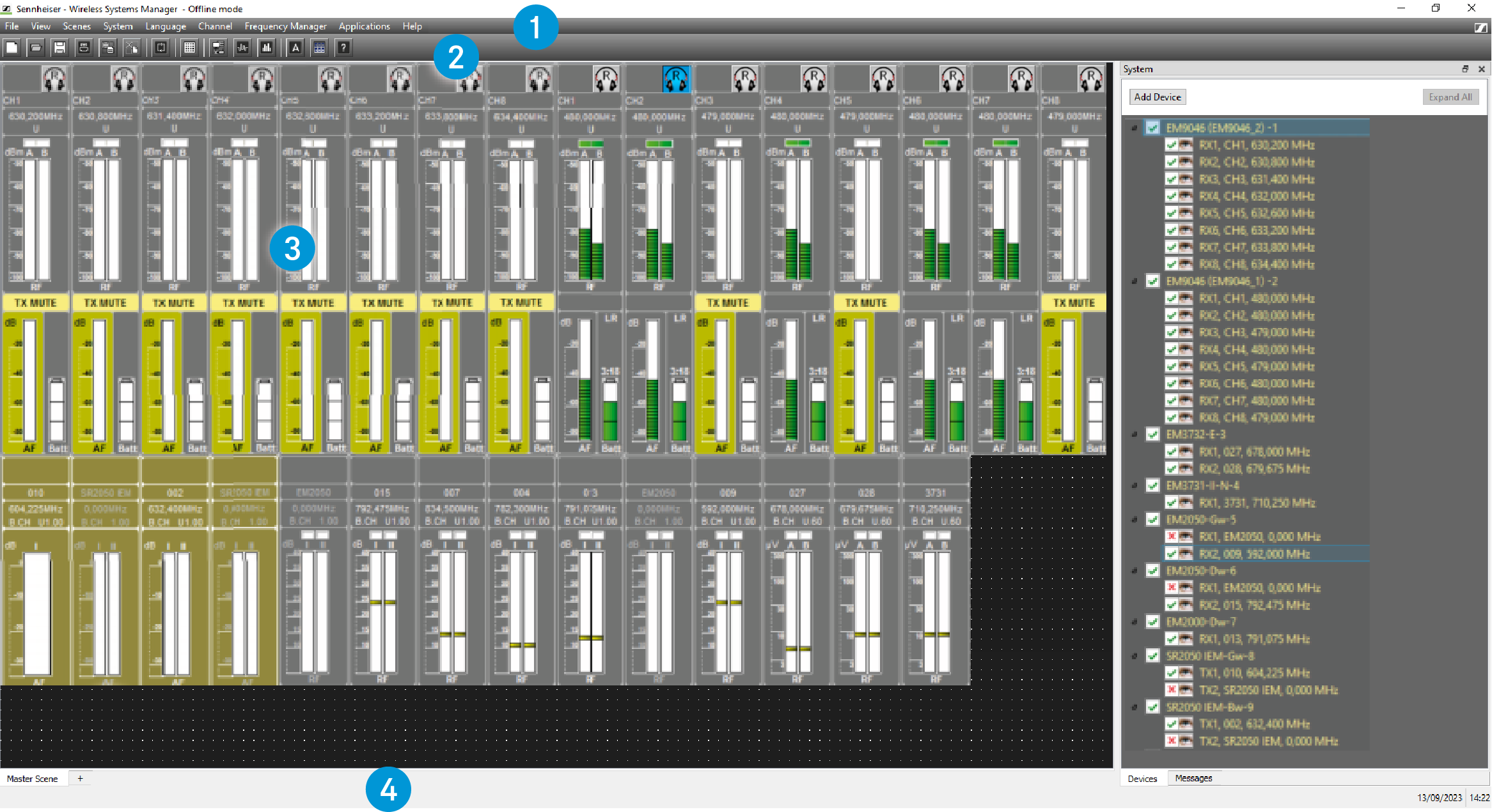
The main window contains the following regions:
1 Menu bar

The menu bar 1 is always visible.
You can select from the following menus (see Overview of menus and the following): “File”, “View”, “Scenes”, “System”, “Language”, “Channel”, “Frequency Manager”, “Applications”, “Help”.
2 Symbol bar (tool bar)

You can operate the WSM via the menu bar 1 and via the buttons in the symbol bar 2. The symbol bar can be shown or hidden (“View Menu” > ”Tool Bar”).
3 Display area
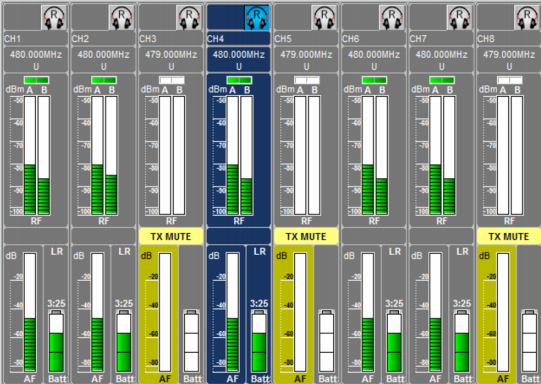
With the standard settings, the display area 3 is divided in two. The “panels” for the connected devices are displayed on the left; this region is designated as the scene.
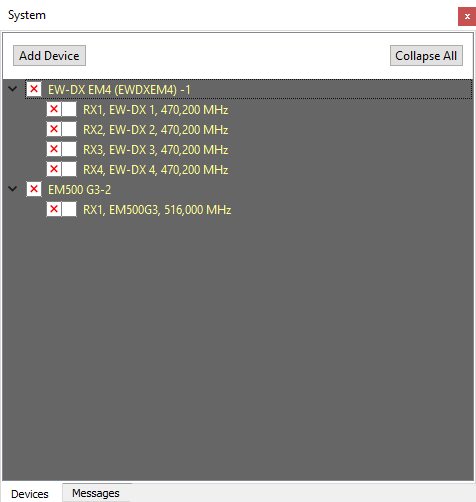
The tabs of the system window are displayed on the right.
Scene
In a scene, you can set up and sort panels (see Working with panels). Each panel displays a channel or a connected device.
When you create a new configuration, there is first only the “Master Scene”. For a better overview, you can set up additional scenes. You can also copy panels, together with their panel settings, from one scene to another.
System window
The system window can be enlarged or reduced by dragging the border between the scene and the system window. By selecting the menu item “View” > “System Window”, you can show or hide the system window.
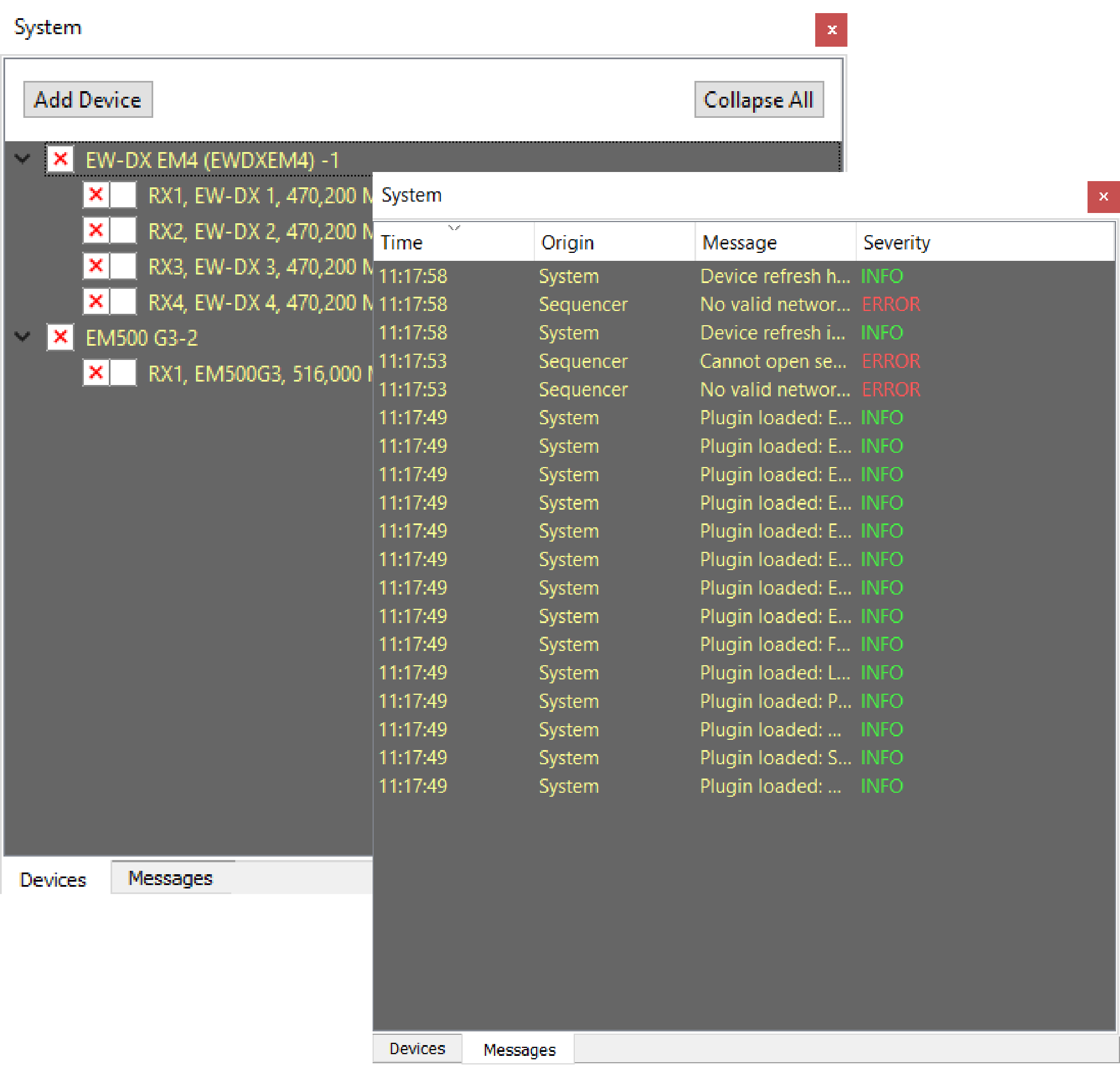
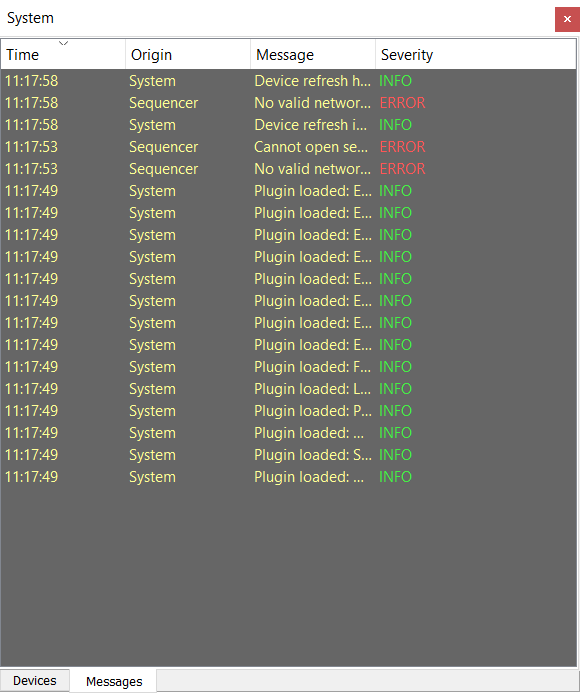
You can toggle between the “Devices” (device list) and “Messages” (message list) tabs.
“Devices” tab
The “Devices” tab displays a list of all connected devices.
The devices connected to an EM 373x (COM), EM 373x-II (COM) or EM 6000 are displayed with the channel number (RX 1 / RX 2).
 Device is switched on.
 Device is switched off or WSM is in “Offline” mode (see Configuring the system in Offline mode).
 Device is indicated as a panel in the currently selected scene.
- Red: Device is disconnected/offline
- Yellow: Device is unclaimed - claim it by setting a new password
- Orange: Device is unauthenticated - Password has already been set on the device - enter that password and start using device
- Green: device authenticated - device has been claimed and authenticated - it is online and can be used
“Messages” tab
4 Status bar

The last message from the devices is displayed on the left in the status bar 4.
The current date and time are displayed on the right.