
Creating a new configuration
Changing to Offline Mode
-
Switch the toggle in the top right corner.
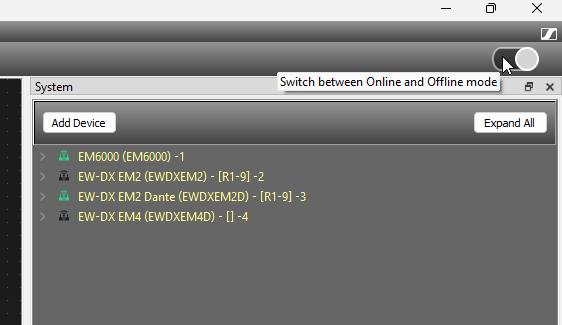
If devices are connected, the link is interrupted. The corresponding panels will be highlighted in gray. The devices in the “Devices” tab of the system window are marked with a red “x”.
Adding devices to the list
-
Click on “Applications” > “Device configuration”.
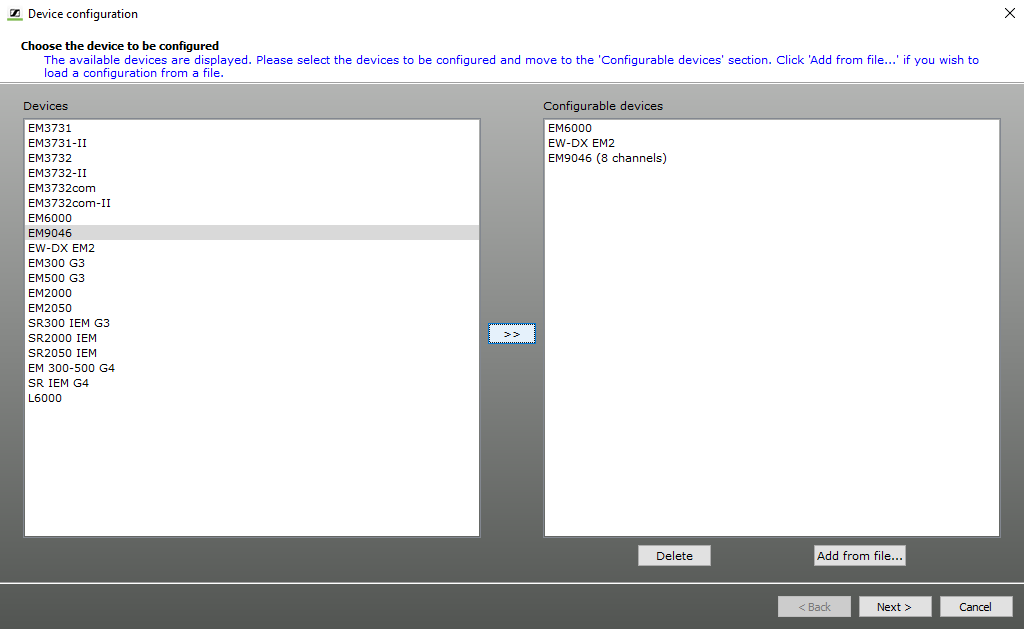
The window contains two lists. The left-hand list displays all WSM compatible devices. The right-hand list displays your current device selection. -
Click on “Next >”.
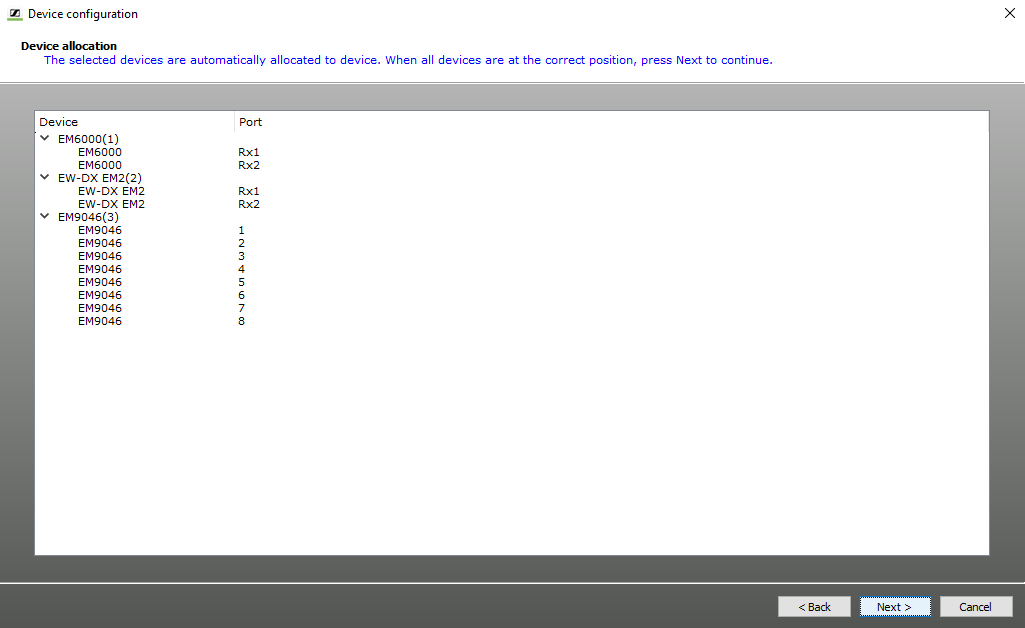
Devices which occupy two ports are displayed twice. E.g.:ew G4/6000 series
- RX 1
- RX 2
EM 9046
- 1
- 2
- 3
- 4
- 5
- 6
- 7
- 8
Loading a list