
Device Settings
The following device settings are available for the TC Bar.
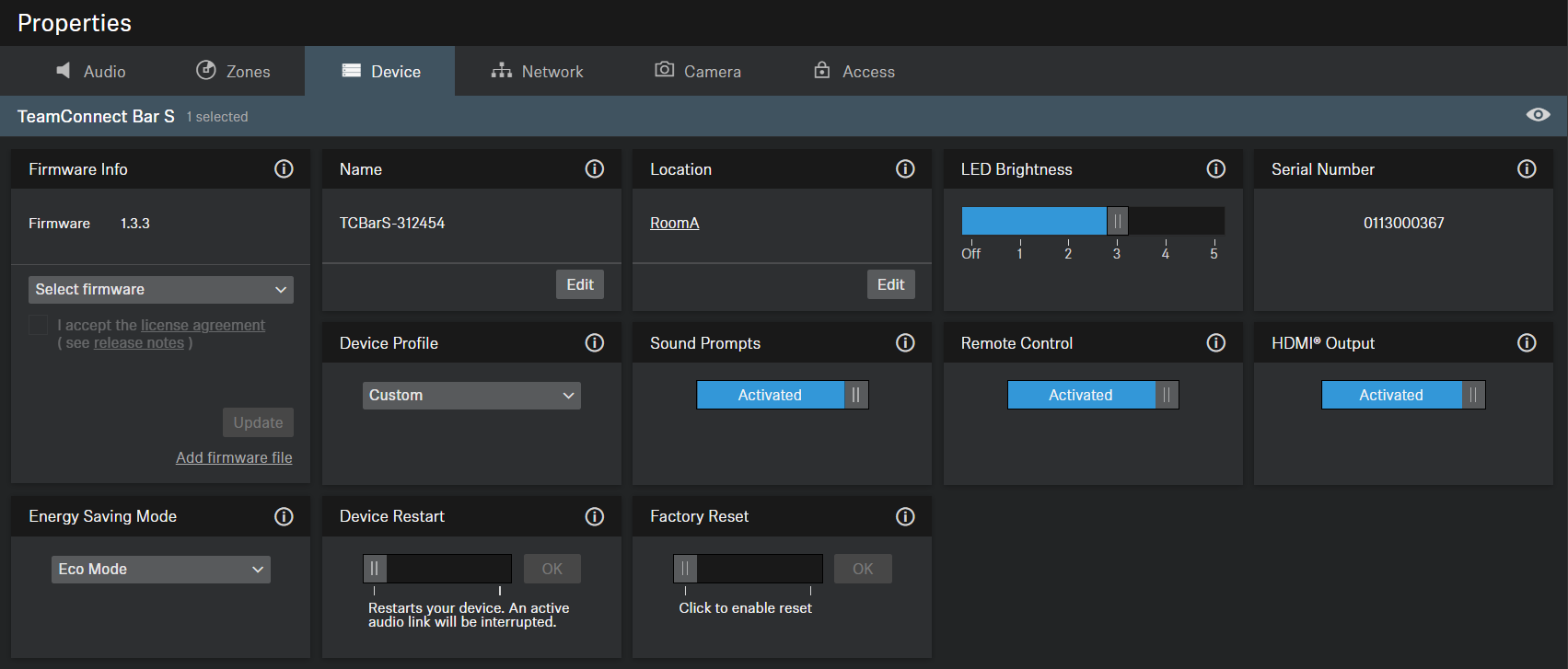
Firmware Info
Displays the current firmware version.
For information on how to update the firmware, refer to Updating device firmware.
Name
Edits the name of a device. The name will be stored on the device. If you change the name on the device itself, it will be displayed here accordingly.
Location
Sets the location of the selected device.
The field is limited to 255 bytes length including any UTF-8 characters.
LED Brightness
Slider for adjusting the LED brightness.
- Off: the LEDs are switched off completely
- 1 ... 5: adjusts the brightness between low (1) and high (5)
Serial Number
Displays the serial number.
Device Profile
- Custom: own device profile
- Enables all settings in the Camera tab as well as the HDMI output in the Device tab
- Microsoft Teams: predefined by Microsoft TeamsUsing this profile, the camera zoom of the TC Bar is reduced to comply with Microsoft Teams specification.
- Enables the default settings for Microsoft Teams
- Resets all settings in the Camera tab
- Disables the HDMI output in the Device tab
- Reboots the device
- Zoom: predefined by ZoomUsing this profile, the camera zoom of the TC Bar might be changed to comply with Zoom specification.
- Enables the default settings for Zoom
- Resets all settings in the Camera tab
- Reboots the device
Sound Prompts
Activates or deactivates all integrated sounds of the TC Bar with the exception of the welcome prompt.
Remote Control
Activates or deactivates the use of the infrared remote control of the TC Bar.
Device Restart
Restarts the selected device.
HDMI output
Activates the HDMI output signal to external display.
Energy Saving Mode
- Low Power Mode (optional)
- Optional mode
- Puts the device into deep sleep mode to reduce power consumption
- Waking the device requires a manual power-on operation
- Remote wake-up is not possible because there is no longer a network connection
- Eco Mode (Default)
- Default mode in the factory-delivered state (firmware ≥1.3.0)
- Puts the device into a state of minimal power consumption to ensure availability and a quick response time over Ethernet.
- Remote wake-up is possible
- Always On Mode (optional)
- Optional mode
- Explicitly recommended for devices that must be available 24/7 for administration purposes
- Must be explicitly confirmed by the user
- Device will no longer be automatically placed into any ECO mode
- The power consumption is not reduced
- The device remains constantly in an operational state and can be accessed at any time.
Factory Reset
All settings of the selected device are reset to the factory defaults.