Sign in (Microsoft)
You can sign in with an existing Microsoft account.
If you are the first user in your company to
use Microsoft sign-in with Sennheiser, your administrator must approve the
connection to Sennheiser before you can sign in with your Microsoft account. In
this case, you are redirected to a page where you must enter a reason for the
request (see Admin approval to enable trust between tenants).
-
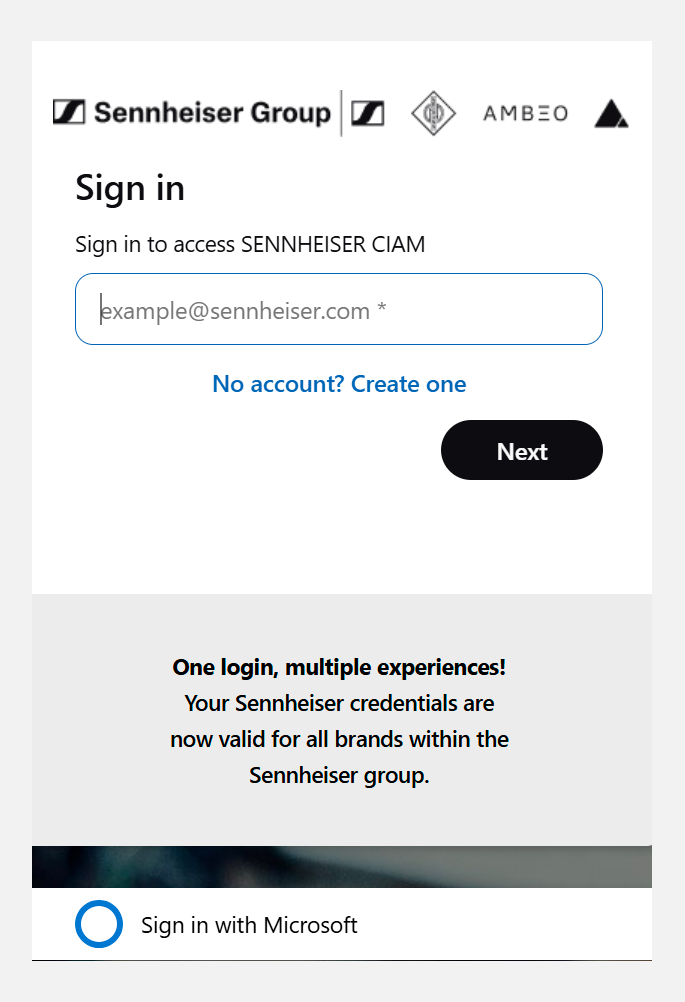
Open the DeviceHub login page: https://devicehub.sennheiser.com/.
A new sign in/sign-up window is displayed.
-
Enter your email address and select Sign in with Microsoft.
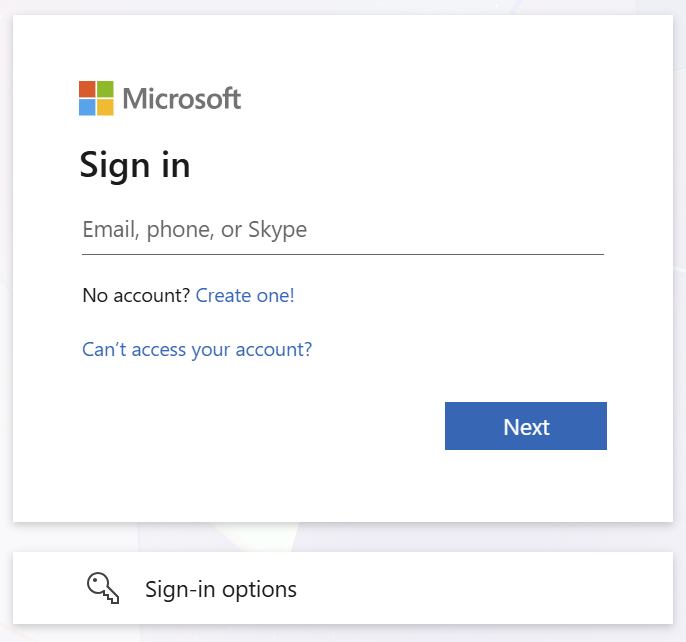
You are redirected to the standard Microsoft sign-in page.
-
Enter your email address again on the Microsoft sign-in page.
After you enter your account email address, you are redirected to your company-branded login page to enter your password. If you already have an active session for this account, you may not need to enter your password again.A One-Time Passcode (OTP) is then sent to your email address to verify your account, for example:Depending on your organization’s tenant configuration, you may be required to complete a configured MFA challenge, such as an authenticator app, passkeys, or SMS code. The required MFA method depends entirely on your configuration.
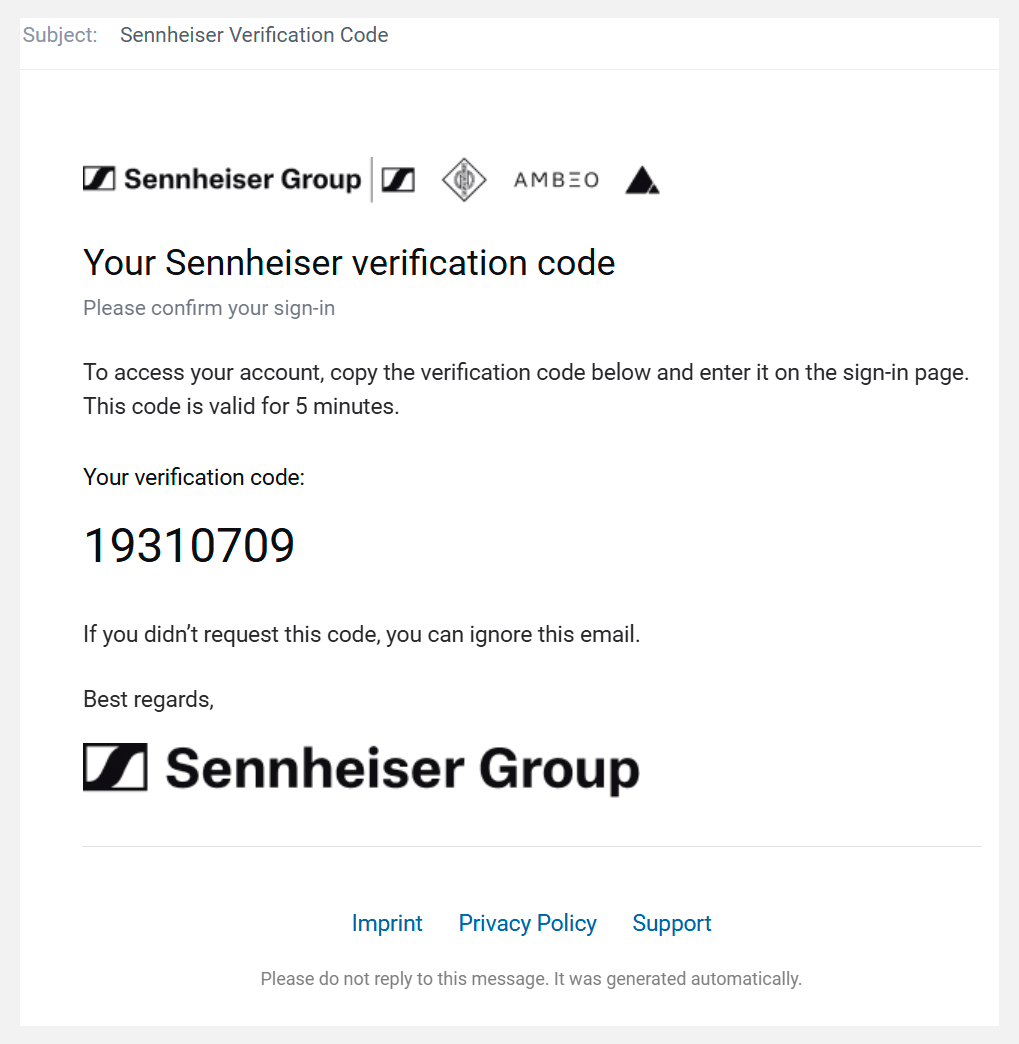 OTP codes are valid for 5 minutes only.
 -
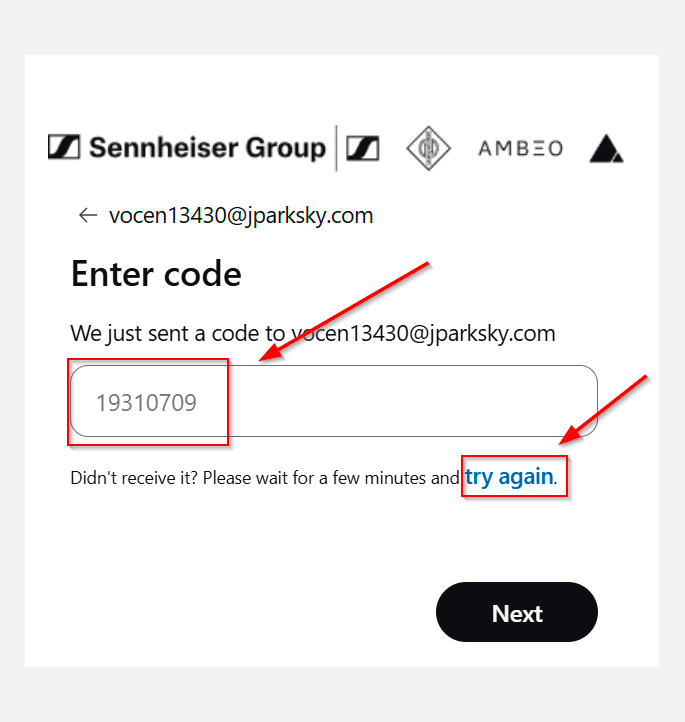
Enter the OTP on the screen.
If it takes longer than expected to receive the OTP email, a message appears indicating that you can request a new code. Select Try again and wait for the new OTP email to arrive.