Connect and configure your TCC M Plus using the integrated local web UI.
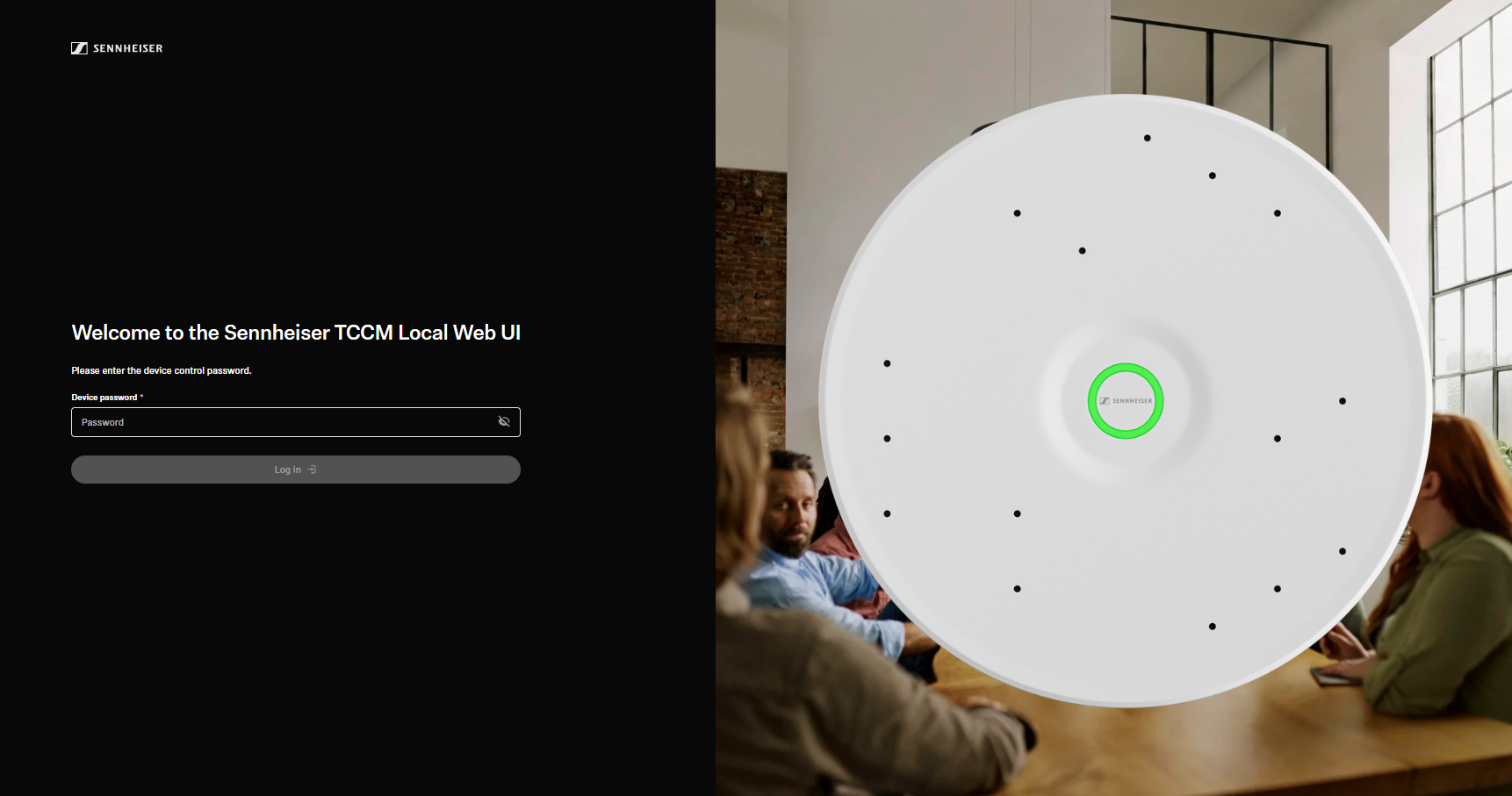
You have two options to run the local web UI:
-
First connect the TCC M Plus to your network via PoE.
-
Read the serial number of your device from the product label and enter https://tccm-plus-serialnumber.local in the browser. Or:
-
Enter https://IP address in the browser.
To determine the IP address of your device:
-
Note the MAC address of the device as specified on the product label.
-
Open the command prompt (CMD) on your computer.
-
Enter the following command to determine the MAC address and IP address of the device: configip. If the MAC address and IP address are not displayed, enter the command arp -a to display all hidden devices.
Depending on the configuration, it may take a few minutes until the device is detected in the network.
-
Use the noted MAC address to read out the IP address of the device and note it down.
The IP address has been determined.
To access the local web UI:
-
In your browser, enter the following URL with the determined IP address: https://IP address.
Since the certificate is not known to your browser, a security warning appears when the application is started for the first time. The security warning depends on the browser used.
-
Depending on the browser, click Advanced and then:
- Continue to localhost (unsafe) (Microsoft Edge)
- Continue to localhost (unsafe) (Google Chrome)
- Accept the risk and continue (Firefox)
- or a similar option (other browsers).
You now have access to the local web UI.
