
Usage of Spectera API
Enabling API Access
Sennheiser devices cannot be accessed via the API in factory default state. In order to enable it, you have connect to the Base Station via Sennheiser LinkDesk or Spectera WebUI and set a password. The Spectera Security Guide explains in detail how to set a device password.
Connecting to the Base Station
Use the IP address of the device and the HTTPS port 443 to form the base URL for the connection requests, e.g. "https://192.168.0.1:443".
CAUTIONSince the 3rd-party "API" access level is not implemented yet on Spectera, you have to use the existing access level used by our Sennheiser applications and NOT the "API" access level mentioned inside the general SSCv2 documentation.
Using HTTP basic authentication
Username: controlSennheiser
Password: configured using Sennheiser LinkDesk or WebUI
Communicating with the API
SSCv2 uses two modes of message exchange:
- Synchronous: The client sends a GET/PUT/POST/DELETE request and the server immediately sends a response
- Asynchronous: The client subscribes to parameter changes and the server notifies the client of parameter changes via a Server Sent Event (SSE). For more see Sennheiser Sound Control Protocol (v2.3) - Specification.
Please also have following Spectera specific recommendations in mind:
TipUse subscriptions for update notifications
We always recommend to use the subscription mechanism to receive updates when resources/objects have been changed instead of polling the resource/object with the GET method.
The SSC server on the Base Station has a limit on how many connections can be handled concurrently. For the sake of fairness to other potential clients, try to keep the number of parallel open connections as less as possible. E.g. keep just one connection for asynchronous (subscriptions) and another for synchronous communication open or open them just on demand.
TipCoordinating Multi-Client-Write-Access
Currently the Multi-Client-Write-Access is not fully implemented and tested yet and might have side effects if more than one client is writing to a resource at the almost same time. Therefore the
usagemarkproperty comes into place./api/ssc/usagemark.There is no active lock of write access, but the
usagemarkcan be used to inform other clients, that they are connected with the Base Station and doing write requests. Other clients shall switch actively into "read-only" access, if theusagemarkis or is getting set by another client. By setting theusagemarkproperty a timeout has to be applied, when theusagemarkget's reset automatically by the Base Station.Please be fair with the
usagemarkand do not hold it longer than necessary.More details are below in example section and the YAML spec.
Managing Mobile Devices
Don't get confused with the abbreviation "MT" or "MTs" in the API paths or in general. It's a synonym for "Mobile Device".
Each Mobile Device (SEK, SKM, etc.) which is connected to the Base Station is handled as a dynamic resource and can be accessed via a unique URI (Uniform Resource Identifier). A group of multiple devices are handled with collections or lists of resources. Each collection can be managed with the typical REST API methods GET/PUT/POST/DELETE.
There are 2 collections for handling the Mobile Devices depending on their current state of relation to the Base Station.
| List | API path | Description |
|---|---|---|
| Pairable Devices | /api/mts/pairable | Contains all the objects representing the Mobile Devices which are currently connected to the Base Station (in Pairing Mode) and can potentially get paired |
| Paired Devices | /api/mts/paired/all | Contains all the objects representing the Mobile Devices which are currently paired to the Base Station regardless of whether they are currently connected or disconnected |
Specific devices can be accessed by GET and PUT methods on the dedicated resource containing the specific mtUid, e.g. /api/mts/pairable/{mtUid} or /api/mts/paired/all/{mtUid}
mtUid vs. serial number
The mtUid is an unique identifier for each Mobile Device inside the Spectera system regardless the type of device. At the API the property mtUid is used to address a specific Mobile Device resource.
The serial number is an unique identifier for each type of Mobile Device. That means that different types of Mobile Device can potentially have the very same serial number. Therefore it can not be used as unique identifier to address a specific Mobile Device resource at the API. Nevertheless can it be read with the property serial of an Mobile Device resource.
The serial number is also printed at the housing of a device.
Pairing a Mobile Device
Before configuring Audio Links on a specific Mobile Device it needs to be paired to the Base Station. This can be done by using the Spectera WebUI (Pairing/unpairing mobile devices) or by using the API.
Basic steps are:
- Activate the Pairing Mode of the Base Station -
PUT /api/mts/pairingwithenable:true - Set the Mobile Device into Pairing Mode - Switching the SEK on and off
- Check the list of Pairable Devices -
GET /api/mts/pairable - Verify/Compare the
PairingPinCodeof the specific Mobile Device going to be paired -GET /api/mts/pairable/{mtUid} - Add the Mobile Device to the list of Paired Devices -
POST /api/mts/paired/allwith themtUid - The Mobile Device reconnects and will be available in the list of Paired Devices -
GET /api/mts/paired/all - Deactivate the Pairing Mode of the Base Station -
PUT /api/mts/pairingwithenable:false
A Mobile Device in the list of Pairable Devices can be forced to search for another Base Station to connect to by removing it from the list. DELETE /api/mts/pairable with the mtUid
Unpairing a Mobile Device
A Mobile Device can be actively un-paired from the Base Station by removing it from the list of Paired Devices. DELETE /api/mts/paired/all/{mtUid}
Managing Audio Links
About Audio Links
Audio Links are dynamic and virtual resources allocating timeslots in the RF channel. The number of allocated timeslots depends on the "mode" of the Audio Link. Modes with low latency, for example, need more timeslots. Creating an Audio Link means reserving the required amount of timeslots. The create fails if not enough timeslots are available. The table below lists the available modes and their size in number of required timeslots. One RF channel has a capacity of 128 timeslots.
The full table of available Audio Link Modes and their characteristics can be found in the Spectera System Specification.
The headlines of the short table below are following:
- Name: Name of the Audio Link Mode
- Ch/Link: Audio channels per Audio Link, where 1 means mono and 2 means stereo
- ID: Audio Link Mode ID used for configuring the Audio Link resource
- IEM: Available for IEM links
- MIC: Available for MIC links
- Slots: Amount of slots that are occupied out of the 128 slots available per RF channel
| Name | Ch/Link | ID | IEM | MIC | Slots |
|---|---|---|---|---|---|
| Deactivated | 0 | ||||
LIVE Ultra Low Latency | 2 (Stereo) | 9 | ✓ | - | 32 |
LIVE Low Latency | 2 (Stereo) | 8 | ✓ | - | 16 |
LIVE | 2 (Stereo) | 7 | ✓ | - | 8 |
LIVE Link Density | 2 (Stereo) | 6 | ✓ | - | 4 |
RAW Low Latency | 1 (Mono) | 11 | - | ✓ | 16 |
RAW | 1 (Mono) | 10 | - | ✓ | 8 |
LIVE Low Latency | 1 (Mono) | 5 | - | ✓ | 16 |
LIVE | 1 (Mono) | 4 | ✓ | ✓ | 8 |
LIVE Link Density | 1 (Mono) | 3 | ✓ | ✓ | 4 |
MAX Range | 1 (Mono) | 1 | ✓ | ✓ | 8 |
MAX Link Density | 1 (Mono) | 2 | ✓ | ✓ | 1 |
Empty (Mono) | 1 (Mono) | 1001 | ✓ | ✓ | 0 |
Empty (Stereo) | 2 (Stereo) | 1002 | ✓ | - | 0 |
TipThe
EmptyAudio Link Modes can be used to already define an audio routing between an Audio Source and Sink without allocating timeslots yet. Therefore no audio will be transmitted.
Configuration
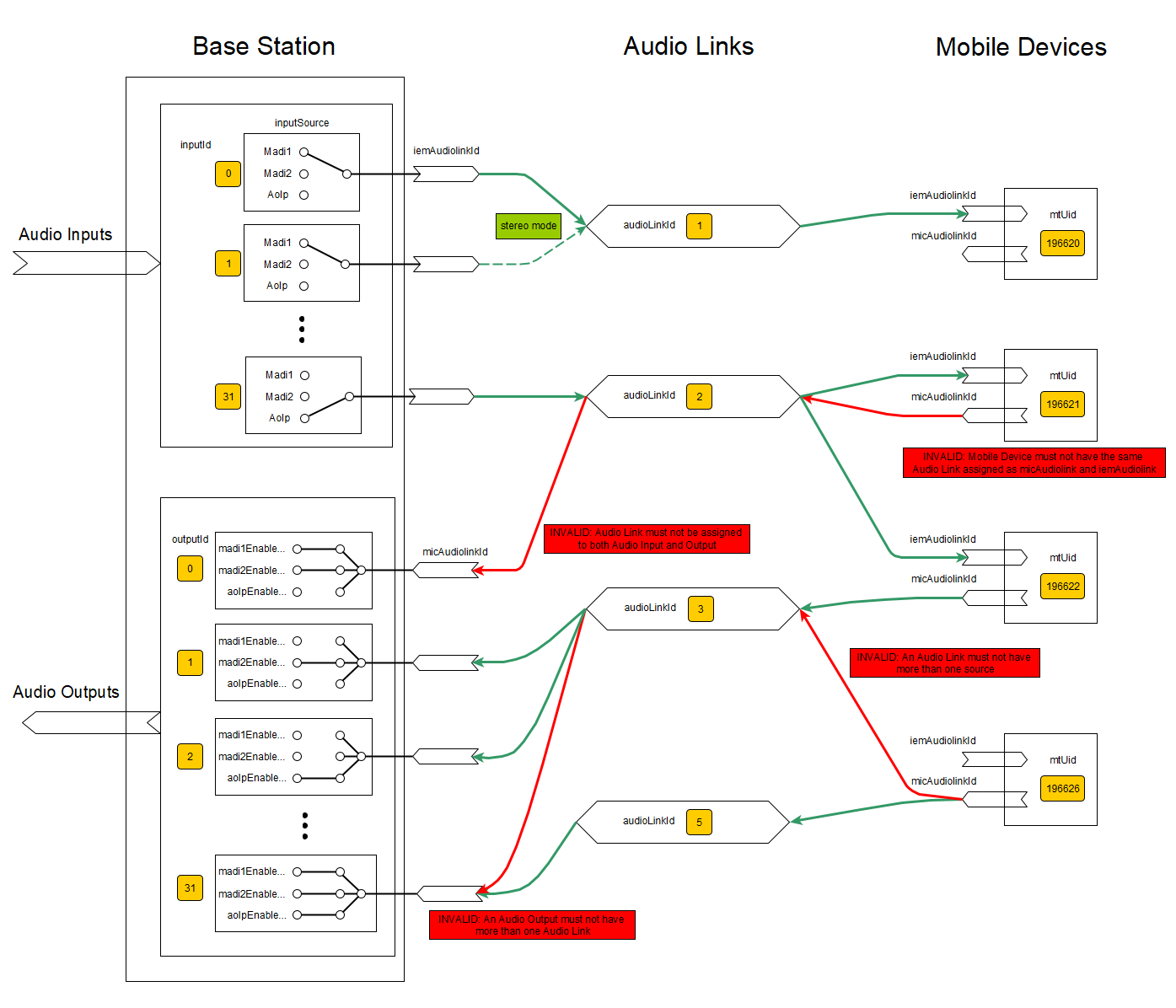
The audio signal routing between Mobile Devices and Base Station input and output channels can be configured flexible by creating, modifying and removing Audio Links and assigning an existing Audio Link to a Source and a Sink (either Mobile Device or Audio I/O). The list of Audio Links can be managed with the typical REST API methods GET/PUT/POST/DELETE on the API path /api/audio/links.
Creating a signal routing always consist of three basic steps:
- Create an Audio Link resource by defining the desired Audio Link Mode and which RF channel to be used -
POST /api/audio/links - Assign the Audio Link resource to the desired Mobile Device -
PUT /api/mts/paired/all/{mtUid} - Assign the Audio Link resource to either an input or output channel of the Base Station -
PUT /api/audio/inputs/{inputId}for an IEM link orPUT /api/audio/outputs/{outputId}for a MIC link
CAUTIONPlease be aware that inconsistent Audio Link resources can be removed by the "Garbage Collection" of a running Spectera WebUI instance. Please ensure that steps 1 and 2 are performed consecutively within 5 seconds to avoid removal of the Audio Link resource. More information can be found on the section "Garbage Collection" below.
Validation Rules
Below rules apply when dealing with Audio Links, e.g. creating, updating, as well as when assigning to other resources as Mobile Devices and Base Station in/outputs:
- An Audio Link must not have more than one source
- Audio Link and Mobile Device must be in the same RF-Channel
- The Audio Links must not exceed the channel capacity (number of slots ≤ 128)
- An Mobile Device cannot have the same Audio Link assigned as micAudiolink and iemAudiolink
- Some Audio Link Modes are pure MIC/IEM modes
- Stereo links are assigned to even input indices, the next odd index is implicitly assigned to the same link
- An Audio Link must not be assigned to both input and output
- The output interfaces must not all be off.
- An Mobile Device cannot change its RfChannel if it has an Audio Link assigned to
- An Audio Link cannot be changed between MONO and STEREO mode
Pending Actions
The API of the Base Station is always buffering all incoming Audio Link configuration requests. Still, applying these changes may take some time due to internal processing delays.
The status of Pending Actions can always be accessed on the API path /api/audio/pendingactions.
It is up to the API client implementation to stop pushing further requests or waiting for the pending actions to complete.
Garbage Collection - Removing "orphan" Audio Links
The current design of the API allows (by inconsistent configuration) to have Audio Link resources allocating timeslots although they are not assigned to any source or sink, so-called 'orphan links'. If any Spectera WebUI instance running on a client browser has access to the Base Station, it regularly checks if such 'orphan links' exist and starts to clean it up by removing this resources. An Audio Link resource needs to have at least a Mobile Device assigned, to not get removed.
CAUTIONPlease be aware that a connected Spectera WebUI instance can remove 'orphan links' at any time. Still the WebUI is respecting the
usagemarkproperty./api/ssc/usagemark
Command Mode
Command Mode feature has been officially introduced with the Spectera API version 18.1. In previous API versions, this feature is not officially supported. Please check the Supported API versions for more details on available firmware versions.
About Command Mode
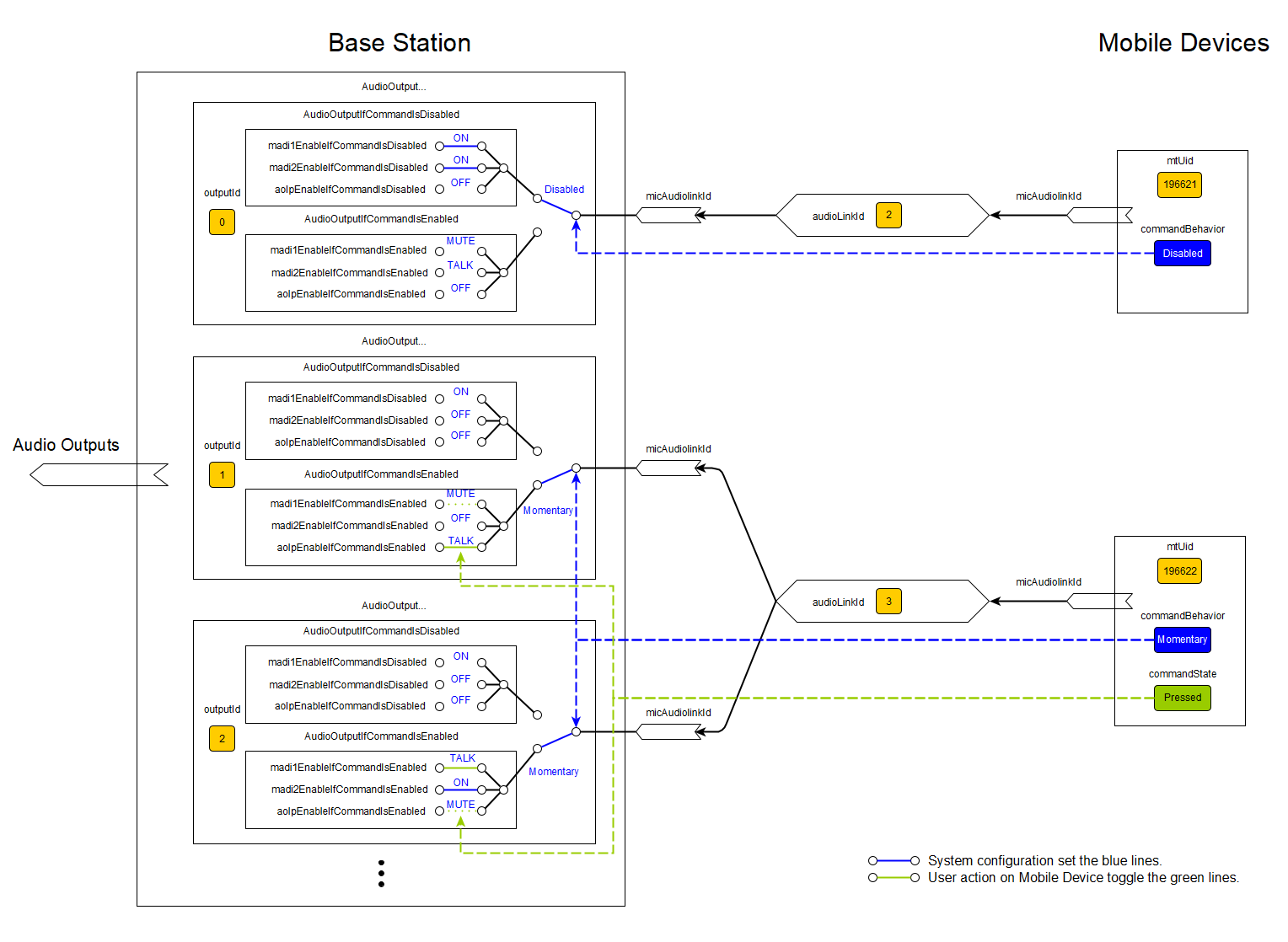
The feature Command Mode provides the possibility for the user of a Mobile Device to trigger a custom routing of the audio signal on the Base Station by pressing a dedicated Command Button at the Mobile Device.
The custom routing in Command Mode is only available for MIC Audio Links respectively Audio Outputs at the Base Station and not for IEM Audio Links and Audio Inputs.
Following functionality can be configured:
- The Command Mode can be enabled for each Mobile Device separately.
- The Command Button behavior can be configured to be either "Momentary" or "Latching". In "Momentary" mode the button needs to be pressed and held to activate the command, in "Latching" mode one press activates the command and another press deactivates it.
- For Command Buttons with LED indication (e.g. SKM COM) the color can be customized for all the available Command Mode states.
- For each Audio Output at the Base Station the routing to the Audio Interface (AoIP, MADI1, MADI2) can be configured individually for the Command Mode being enabled or not. This allows to have a custom audio routing when the Command Mode is active, e.g. for a talkback function.
- The audio routing behavior can be configured in 2 styles:
- Mute: The audio signal is muted when the Command is triggered and unmuted if not
- Talk: The audio signal is unmuted when the Command is triggered and muted if not
- Since an Audio Link can be assigned to several Audio Outputs, the Command Mode can be used for custom audio routing of one Mobile Device to different Audio Outputs, depending on the Command trigger.
Additionally the state of the Command Button can be accessed via the API and used for triggering other actions on the Base Station or at the client side, e.g. for controlling external devices or for visualizing the state of the Command Button.
Configuration
The Command Mode behavior and audio routing can be configured by modifying the properties of a paired Mobile Device and of the Audio Outputs at the Base Station.
Configuring the Command Mode always consist of two basic steps:
- Enable the Command Mode for the desired Mobile Device by defining the behavior (Momentary or Latching) at the property
commandBehavior-PUT /api/mts/paired/all/{mtUid} - Configure the state dependent audio routing (
On,Off,Mute,Talk) for the Command Mode at the desired Audio Outputs by defining the desired routing at the propertiesaoIpEnableIfCommandIsEnabled,madi1EnableIfCommandIsEnabled, andmadi2EnableIfCommandIsEnabled-PUT /api/audio/outputs/{outputId}
Tip
The interfaces of an Audio Output with an Audio Link assigned must not all be
Off.Even with Command Mode enabled the routing can be set to
OnorOff. In this case the Command trigger will not change the routing, but the state of the Command Button can still be accessed via the API and used for other purposes.
Retrieve Live Monitoring Data with Level Recording
Level Recording has been introduced with the Spectera API version 18.1 as preliminary feature which will continuously evolve. It is not available in previous API versions. Please check the Supported API versions for more details on available firmware versions.
About Level Recording
The feature Level Recording provides a stream of telemetry data, e.g. audio metering, Mobile Device parameters, antenna and RF channel parameters, which can be used for monitoring and debugging purposes. A certain set of parameters, which can be accessed via the SSCv2 API, are available through Level Recording but are provided as a high-efficient binary stream encoded with FlatBuffers instead of JSON. The Level Recording API is designed as a sub-schema of the SSCv2 Control API and therefore follows the same authentication and subscription mechanism as the main SSCv2 OpenAPI. The only difference is that the payload of the SSE events is encoded as FlatBuffers and not JSON.
The Base Station is generating the Level Recording data as snapshots in regular intervals of around 1 second and provides it via a dedicated endpoint as SSE events with FlatBuffers-encoded payload (Frame). Each Frame is structured in different "sections" for better maintainability. Each section contains a set of parameters related to a specific topic, e.g. audio metering, etc. The sections are defined in a dedicated FlatBuffers schema (*.fbs file). Some of these sections contain bulk data of the 1 second snapshot, e.g. the audio metering data provides 64 values per audio channel for each Frame.
Additionally to the live stream of monitoring data, the Base Station also provides the possibility to retrieve historical data of the last 1 hour with a time resolution of around 1 second. This option will mainly used to cover lost live data or to analyze past events. The historical data is provided with the same structure and schema as the live data, but only on demand when requested by the client. This can be achieved by providing the desired range (start and end index) of historical data to the dedicated endpoint for historical data retrieval. The Base Station will then send all available Frames of the requested range as SSE events with FlatBuffers-encoded payload.
Brief outline on FlatBuffers
FlatBuffers is a serialization library and format developed by Google. It allows to define data structures in a schema and serialize them into a compact binary format. The main advantage of FlatBuffers is that it allows zero-copy deserialization, which means that the data can be accessed directly from the serialized buffer without the need for parsing or unpacking, making it very efficient for real-time applications. The schema of the FlatBuffers data is defined in a *.fbs file, which can be compiled to generate code for different programming languages to easily encode and decode the data.
Schema Versioning
The FlatBuffers schema has its own life-cycle and therefore versioning independent of the SSCv2 API versioning. A new version of the FlatBuffers schema will be introduced and announced with at least a change of the minor SSCv2 API version, but not necessarily with every new API version.
Sennheiser follows the official FlatBuffers schema evolution guidelines with the primary goal of wire compatibility of the binary payload across minor schema versions:
Wire compatibility across minor schema versions: The binary format remains decodable across minor schema version changes (e.g. 1.0 → 1.1). Newer clients can decode older payloads and vice versa.
Feature compatibility is not guaranteed across minor schema versions: While the binary format stays decodable, individual fields may be deprecated (returning default/zero values). Features depending on deprecated fields will no longer receive meaningful data. Refer to the release notes for details on deprecated and newly introduced fields.
Major schema versions may break wire compatibility: A major schema version increment (e.g. 1.x → 2.0) may require client-side decoder updates.
Since the FlatBuffers schema covers a similar set of parameters as the SSCv2 API, the schema evolution will be primarily driven by the changes in the SSCv2 API schema. Deprecated parameters and breaking changes in the FlatBuffers schema will be announced in the release notes.
TipLevel Recording clients should use the schema version reported by
/api/levelrecording/versionas their version contract and check it at connection time to detect schema changes independently of the SSCv2 API version. As the Level Recording feature is still preliminary, the versioning and evolution policy may be refined in future API versions.
Endpoints overview
GET /api/levelrecording/version
- Get the Level Recording schema version
Example Response Body:
{
  "protocol": "flatbuffers",
  "schema": "1.0",
  "schemaDetailed": "1.0.0"
}
The version information is relevant for decoding the FlatBuffers payload of the Level Recording data. The client needs to ensure that the schema version is compatible with the version it supports to be able to decode the payload correctly.
GET /api/levelrecording/info
- Get information about currently available indices and buffer fill level of the historical level recording data.
Example Response Body:
{
  "session_uuid": "42b3f67c-9ee5-438b-ac92-00fa71e040e2",
  "start_index": 0,
  "size": 148
}
This information is relevant for retrieving historical data with the endpoint /api/levelrecording/history as it provides the valid range of indices for the historical data and the session UUID to be used for retrieving the historical data.
The session UUID is unique for each Level Recording session and can be used by the client e.g. after a reconnection to check if the historical data has been reset or if it is still available for retrieval. Every restart or reset of the Base Station will reset the Level Recording session and therefore all historical data will be lost and a new session UUID will be generated.
GET /api/levelrecording/live
- Request Level Recording Live Data by initiating a subscription to the live stream of Level Recording data as Server Sent Events (SSE) with FlatBuffers-encoded payload.
This GET request will not return a single response body, but initiates a subscription to the live stream of Level Recording data as Server Sent Events (SSE). The client will receive an SSE event every second with the latest snapshot of monitoring data encoded in the payload as FlatBuffers binary data according to the Level Recording schema. The client needs to decode the FlatBuffers payload according to the schema to access the monitoring data.
Following SSE event types are available in the live stream:
event:open\ndata:<json-data>\n\n
- This event is sent once when the subscription to the live stream is established. The data payload contains a JSON object with the session UUID, the start index for the first FlatBuffers Frame, the current buffer fill level of the historical data, and the version of the FlatBuffers schema (schemaDetailed).
Example Payload:
{
  "session_uuid": "42b3f67c-9ee5-438b-ac92-00fa71e040e2",
  "start_index": 0,
  "size": 148,
  "version": "v1.0.0"
}
event:message\ndata:<json-data>\n\n
- This event is sent for each new snapshot of Level Recording data. The data payload contains a JSON object with the index, timestamp, and the FlatBuffers-encoded data.
Example Payload:
{
  "index": 149,
  "time_stamp": 1770207951507,
  "payload": "GAAAAAAAEgAga..."
}
event:close\ndata:"goodbye"\n\n
- This event is sent when the subscription to the live stream is closed from server-side for any reason.
Tip
The Level Recording data is only available as SSE stream. Therefore the connection needs to be kept open. There is no possibility to retrieve the data with single synchronous GET requests.
We recommend to use a dedicated connection/socket for the live stream and not share it with other requests.
The stream can be stopped by closing the connection.
CAUTIONThis endpoint can not be subscribed with the usual SSCv2 subscription mechanism via
/api/ssc/state/subscriptions.
GET /api/levelrecording/history
- Get historical Level Recording data by providing the start and end indices of the data to be retrieved.
This GET request will not return a single response body, but initiates a stream of historical Level Recording data as Server Sent Events (SSE). The client will receive SSE events as fast as the server can provide them. The client needs to decode the FlatBuffers payload according to the schema to access the monitoring data.
The SSE event types are the same as for the live stream, but the payload contains only the historical data of the requested range of indices.
Tip
As with the live stream, the historical Level Recording data is only available as SSE stream.
If the requested range of historical data is not available anymore, e.g. due to a session reset or because the requested indices are out of range, the server will send at least all the data still available within the requested range.
We recommend to use a dedicated connection/socket for the historical stream and not share it with other requests.
The stream can be stopped by closing the connection.
The stream will be automatically stopped by the server (with a close event) after sending the requested range of historical data.
CAUTIONThis endpoint can not be subscribed with the usual SSCv2 subscription mechanism via
/api/ssc/state/subscriptions.
Examples of basic requests for 3rd-party access
Here are a few examples which resources might be useful for the 3rd-party access.
GET /api/ssc/version
- Get the SSCv2 protocol and schema (interface) versions
Example Response Body:
{
  "protocol":"2.3",
  "schema":"17.0",
  "schemaDetailed":"v17.0.0+0-g7081b87f"
}
GET /api/ssc/usagemark
- Check if the device is "in use"
Example Response Body, if the device is "in use":
{
  "usedBy": "LinkDesk.JaneDoe-12345abcdef",
  "timer": 5
}
Example Response Body, if the device is NOT "in use":
{
  "usedBy":"",
  "timer":300
}
PUT /api/ssc/usagemark
- Set the device as "in use" for the next 10 seconds.
Request body:
{
  "usedBy": "3rd-party.JoeDoe-12345abcdef",
  "timer": 10
}
GET /api/device/identity
- Get the device identity
Example Response Body:
{
  "product":"Spectera-Base-Station",
  "hardwareRevision":"0594192-08",
  "serial":"1424000001",
  "vendor":"Sennheiser electronic SE & Co. KG"
}
PUT /api/device/identification
- Sets the state of device identification. Let the LED of Base Station flash for identification.
Request body:
{
  "visual": true
}
GET /api/firmware/update/state
- Get the state of a firmware update process incl. version. For 3rd-party only the firmware version of the Base Station and of the Dante module might be of interest.
Example Response Body:
{
  "deviceVersion":"v1.3.0",
  "aoIpVersion":"1.1.0",
  "state":"Idle",
  "progress":0,
  "lastStatus":"None",
  "lastStatusDetailed":"NONE"
}
GET /api/rf/channels
- Get the list of RF channels and their settings.
Example Response Body:
[
  {
    "rfChannelId":0,
    "txPower":50,
    "frequency":522000,
    "bandwidthMode":8000,
    "rfRestrictionViolation":false,
    "rfState":"RfActive",
    "rfStateOnStartup":"RfMuted"
  },
  {
    "rfChannelId":1,
    "txPower":50,
    "frequency":554000,
    "bandwidthMode":8000,
    "rfRestrictionViolation":false,
    "rfState":"RfActive",
    "rfStateOnStartup":"RfMuted"
  }
]
GET /api/mts/paired/all
- Get the list of all paired Mobile Devices and all of their properties.
You will get an array of all Mobile Devices paired with the Base Station. Each entry contains all the properties of each single device. You can use the "mtUid" for further requests on a dedicated Mobile Device.
Example Response Body:
[
  {
    "mtUid":16789965,
    "type":"SEK",
    "frequencyRange":"UHF",
    "rfChannelId":1,
    "identify":false,
    "reverseIdentify":false,
    "name":"SEK",
    "serial":"1495000001",
    "sleep":false,
    "state":"Connected",
    "lastConnected":"NotAvailable",
    "version":"v1.3.5",
    "versionMismatch":false,
    "fccId":"DMOSEKUHF",
    "batteryFillLevel":100,
    "batteryRuntime":65535,
    "batteryLow":false,
    "ledBrightness":"Standard",
    "connectedStateColor":"#00A100",
    "swUpdatePossible":true,
    "swUpdateNotPossibleReason":"",
    "swUpdateProgress":-1,
    "micAudiolinkId":39,
    "iemAudiolinkId":-1,
    "micAudiolinkActive":true,
    "iemAudiolinkActive":false,
    "headphonePlugState":"Unplugged",
    "headphoneVolume":-20,
    "headphoneVolumeMax":27.5,
    "headphoneVolumeMin":-100,
    "headphoneBalance":0,
    "headphoneMonoBalanced":false,
    "micPreampGain":12,
    "micLowCutHz":20,
    "micTestToneEnabled":false,
    "micTestToneLevel":-60,
    "micLineSelection":"Auto",
    "micLineSelectionAutoValue":"Mic",
    "cableEmulation":"Off",
    "commandState":"NotAvailable",
    "iemLqi":0,
    "micLqi":4,
    "interference":
    {
      "severity":"Low"
    },
    "dominantAntenna":"d",
    "rssi":-42
  }
]
PUT /api/mts/paired/all/{mtUid}
- Modify the properties of a paired Mobile Device given by the "mtUid" and "type", e.g. let the LED flash to identify.
Example Request Body:
{
  "mtUid":16789965,
  "type":"SEK",
  "identify":true
}
GET /api/audio/levels
- Get the audio input (IEM) and audio output (MIC) levels at the Base Station.
You will get the audio input and output levels of all audio channels for all interfaces (Madi1, Madi2 and Dante).
TipWe recommend to subscribe for that resource than pulling it with a GET request. You will receive always the full set of audio levels for all 32 input and 32 output channels on the Base Station. There is no dedicated resource or property to get the audio level of one dedicated Mobile Device. If you would like to know the mapping of a Mobile Device to an Audio Channel you have to do "reverse engineering" by reading out the Audio Links configured for a dedicated Mobile Device.